
Android battery dying fast? Here’s how to check if it needs replacing
Smartphones losing battery life over time is inevitable. But with the cells on most phones not easily replaceable, the rate of this drop-off is crucial.
Knowing your phone’s battery health is crucial. It can help you ascertain whether you need a new battery or even a brand-new smartphone, or whether you just need some tricks to improve battery life.
Luckily, most Android handsets make it easy to find out exactly where your battery health is right now, helping you make an informed next step.
How to check the battery health on your Android phone
With so many different takes on Android, it’s impossible to cater to every single software experience. However, the principle remains the same across the board:
- Open your smartphone’s Settings.
- Tap on ‘Battery’.
- Look for an entry such as ‘Battery information’, ‘Battery status ’ or ‘Battery details’. If you can’t find it there, check under ‘About phone’ or ‘Device maintenance’.
On Samsung Galaxy phones, for example, the path is Settings → Battery → Battery Information. Alternatively, you can use the pre-installed Samsung Members app: tap Support → Phone Diagnostics → Battery Status.
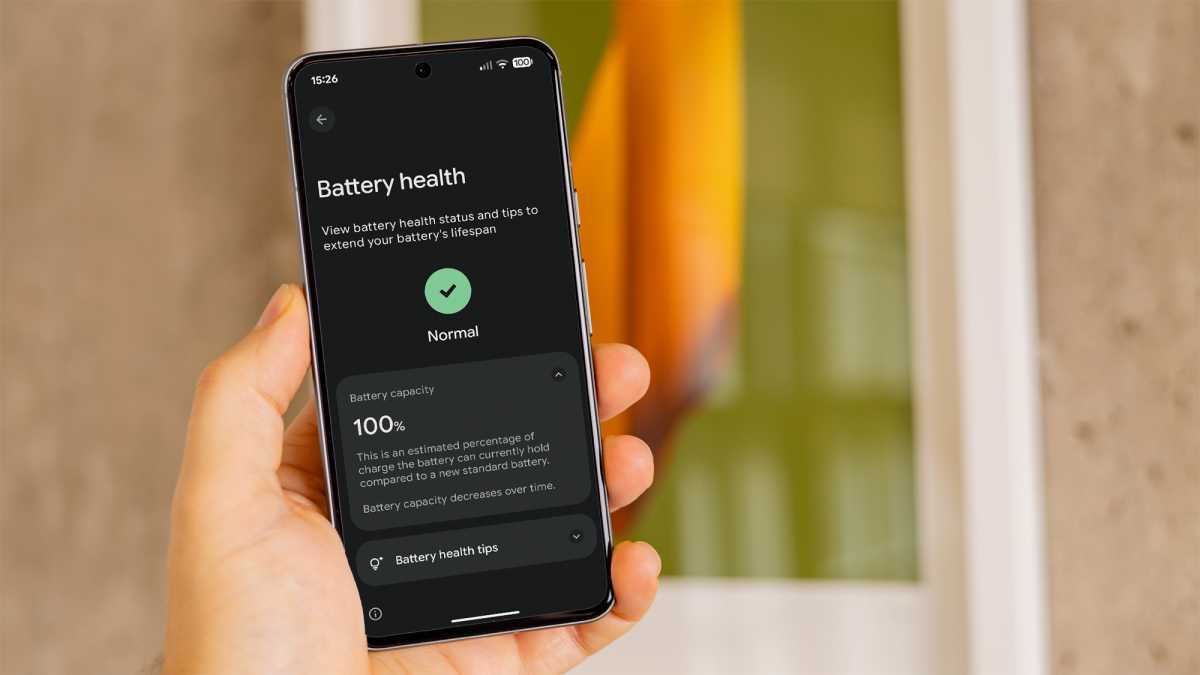
Google Pixel users can find it by heading to Settings → Battery → Battery health (shown below).
Foundry
Depending on your device, you’ll typically see an exact percentage, a simple assessment such as ‘Normal’ or ‘Low’, or both.
You can also see the total number of charge cycles, which is a measure of how many times your phone has been fully emptied and fully charged, though this can be cumulative and not all in one go. On Pixel, head to Settings → About phone → Battery information to find out.
Checking battery health via an app
If you can’t find a specific health rating in the settings, the AccuBattery app (free on the Play Store) can help. It estimates the remaining capacity based on your charging and usage patterns and displays the health percentage and the remaining capacity in milliampere-hours in the “Status” tab.
Do allow a bit of time for this, however, as AccuBattery needs a few days to collect charging cycle data. Only on this basis can the app calculate a reliable health rating.
Alternative: Enter a secret code
On many Android smartphones, you can open a hidden diagnostics menu via the Phone app:
- Open the Phone app.
- Enter the code *#*#4636#*#* on the dial pad and the menu will open automatically.
- Select ‘Battery Information’ to view the battery condition, charge level and temperature.
This code does not work on all devices. In particular, it often does not work at all on One UI on Samsung phones. If no menu appears, use the methods in the first section or download the AccuBattery app instead.
What does ‘battery health’ mean, and when does it become critical?
Battery health indicates how much capacity your battery still has compared to when it was new. Over time and with every charging cycle, this value inevitably decreases because lithium-ion batteries age chemically and lose storage capacity permanently in the process.
How to look after your battery in the long term
A battery lasts longest when its charge level is kept between 20 and 80 per cent.
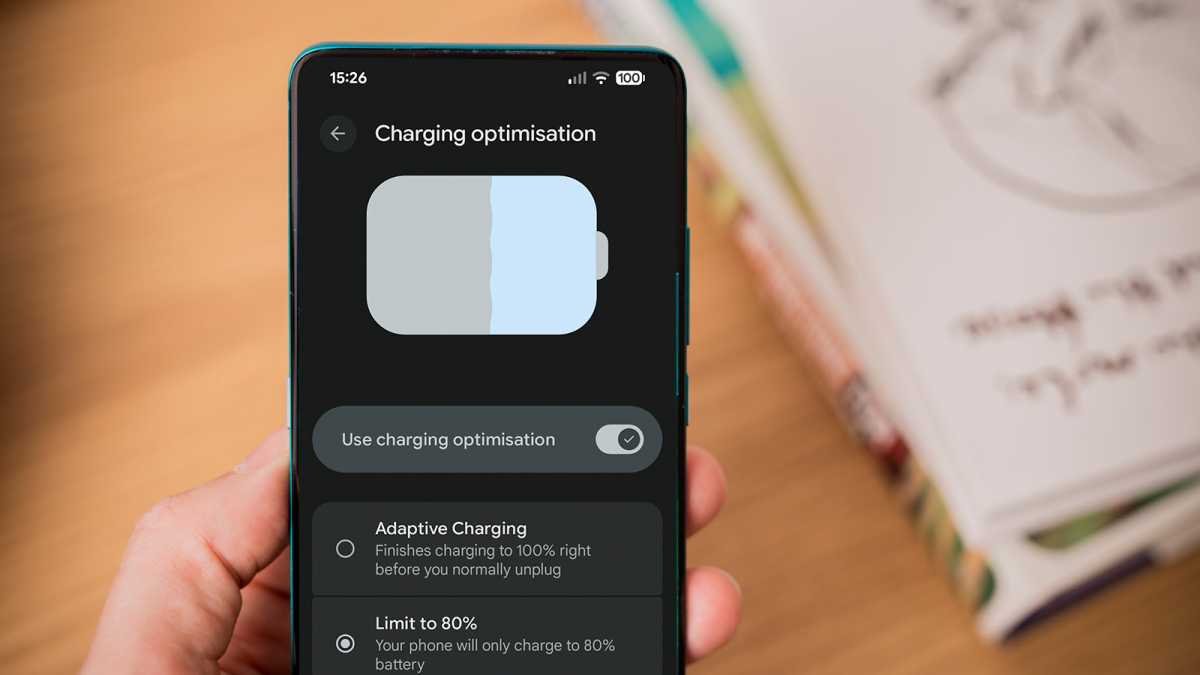
Many newer Android smartphones offer a charging limit for this purpose directly in the settings: open the ‘Battery’ section and look for an option such as ‘Battery protection’, ‘Charging Optimisation’ or ‘Battery Care’ – the exact name varies depending on the manufacturer.
There, you can set the battery to charge only up to 80 or 85 per cent and then stop automatically, even if the charging cable remains connected.
Foundry
As a rough guide:
- 100–90 per cent capacity: The battery is in good condition and there is hardly any noticeable difference compared to when it was new.
- 89–80 per cent capacity: Normal wear and tear, but the battery life has become noticeably shorter.
- Below 80 per cent capacity: The difference compared to when it was new is clearly noticeable. If you use your smartphone intensively every day, you should gradually start thinking about replacing the battery.
- Below 70 per cent capacity: The battery is significantly weakened. Unexpected shutdowns and a rapid drop in the charge level indicator are no longer uncommon.
If your device displays an estimate such as ‘Normal’ or ‘Low’ instead of a percentage, the general rule is: ‘Normal’ usually corresponds to a capacity of over 80 per cent, whilst ‘Low’ is below that.