Just got One UI 9? Here are 10 Samsung Galaxy features you need to try
Samsung phones are known for their fantastic software. Few competitors match Samsung’s wealth of features and long-term support policy.
Now, following the launch of Android 17, One UI 9 is rolling out to many more Galaxy phones – including yours, if you have a fairly recent handset.
So, whether you have the wallet-busting Galaxy Z Fold 8 Ultra or the affordable Galaxy S26 FE, it’s worth knowing how to make the most of your operating system.
Here’s our guide to the top 10 tips and tricks in One UI 9 that you might not know about.
Reframe videos with My FanCam
This feature debuted with the Z Fold 8 series, but it’s now available on most phones with One UI 9, including the S26 series.
Essentially, when you take a video, you can choose a specific person within that video, and FanCam will automatically crop the video to follow them around the frame. It’s basically like having a gimbal, without needing to buy a gimbal.
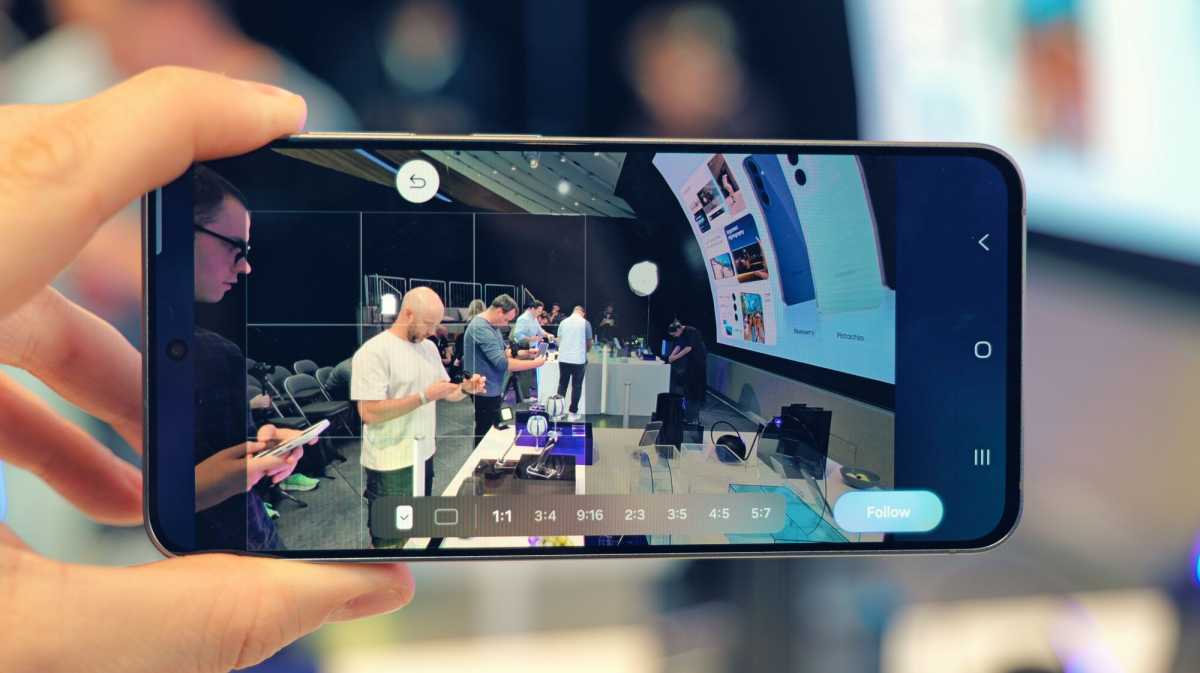
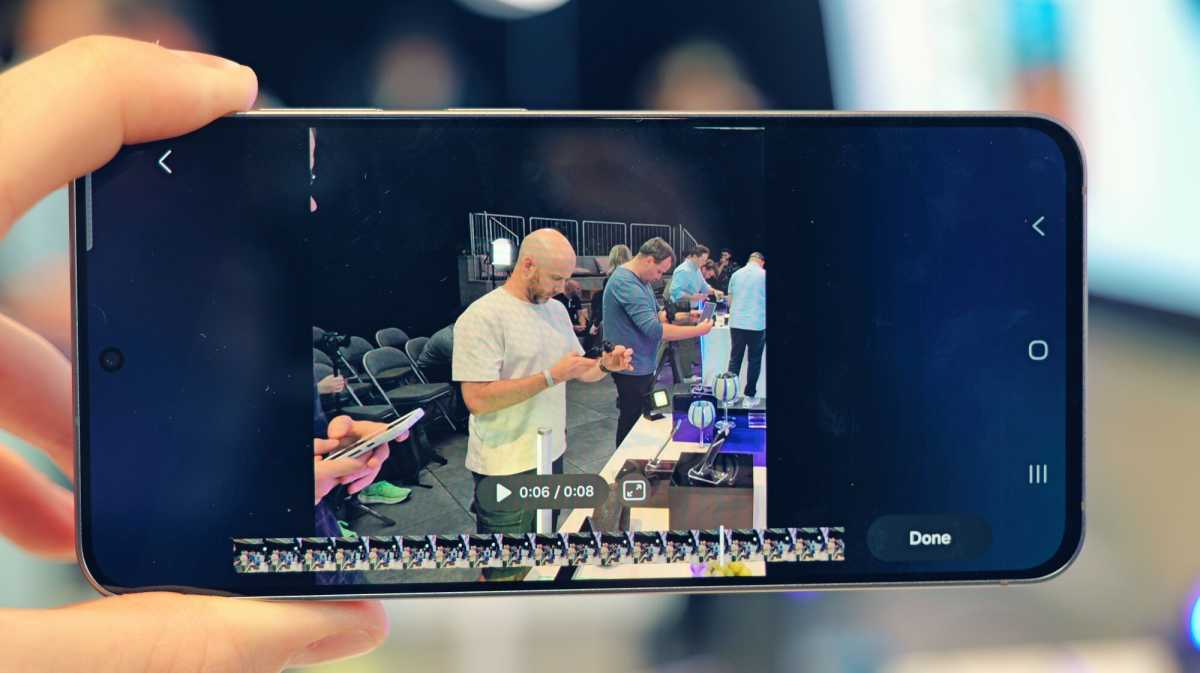
It means that you can have a static wide shot on a tripod, and FanCam will handle all the camera movement for you. What makes it even better is the fact that you can choose from a wide range of aspect ratios. You can have a vertical crop for TikTok, a landscape version for YouTube, and a square crop for Instagram, for example.
Here’s how to access it:
- Start by recording a video with multiple subjects in the frame – it works best with a static shot.
- Open the video in the Samsung Gallery app, then tap the Galaxy AI icon
- Choose My FanCam. The clip will be analysed, then you will see boxes appear around each person in the frame.
- Tap the person you want to track.
- Choose your desired aspect ratio. E.g. 9:16 for vertical or 16:9 for horizontal.
- Tap Follow to start the FanCam, and Save Copy if you’re happy with the results.
Freshen up your Quick Panel
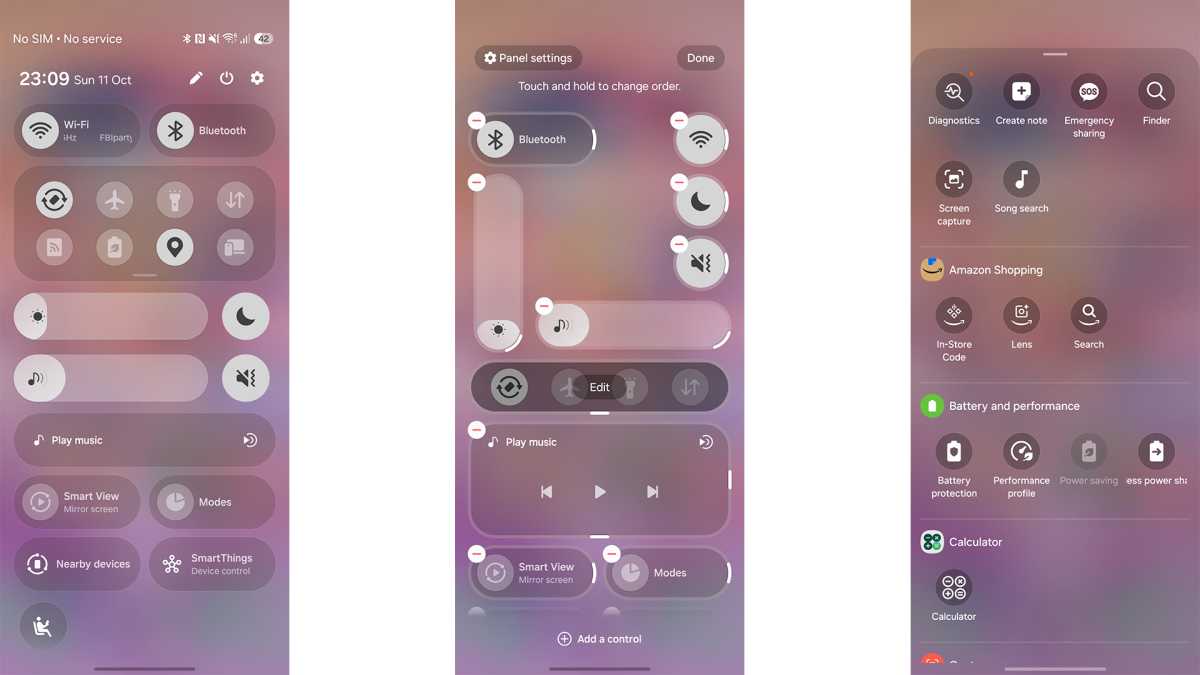
One UI 9 adds a lot of flexibility to the Quick Panel, its name for the quick settings menu that appears when you swipe down from the top of the screen. It’s probably your go-to place for adjusting Bluetooth connections, brightness and volume, but that’s just the tip of the iceberg.
Luke Baker
You can now completely rework the layout, making your most-used settings more prominent, and getting rid of the stuff you don’t need. Want horizontal sliders rather than vertical ones? No problem. How about a massive media control panel, or no media controls at all? It’s all possible with the revamped customisation options.
Here’s how you do it:
- Swipe down from the upper right side of your screen to fully expand the Quick Panel.
- Tap the Pencil Icon to enter edit mode.
- Tap and hold the edges of the brightness or volume sliders to change their size or swap orientation
- Tap the Media Player Tile to adjust its size.
- Expand or compress buttons as you wish.
- Scroll down to see inactive buttons and drag them into the Quick Panel.
- When you’re satisfied, hit Done to save your new layout.
Stop the doomscrolling with AI Network Guard
If you stop to think about it for a moment, it’s amazing that we have access to all the information in the world using a little slab that fits in your pocket. When you’re trying to focus, though, that can be a real problem.
Luke Baker
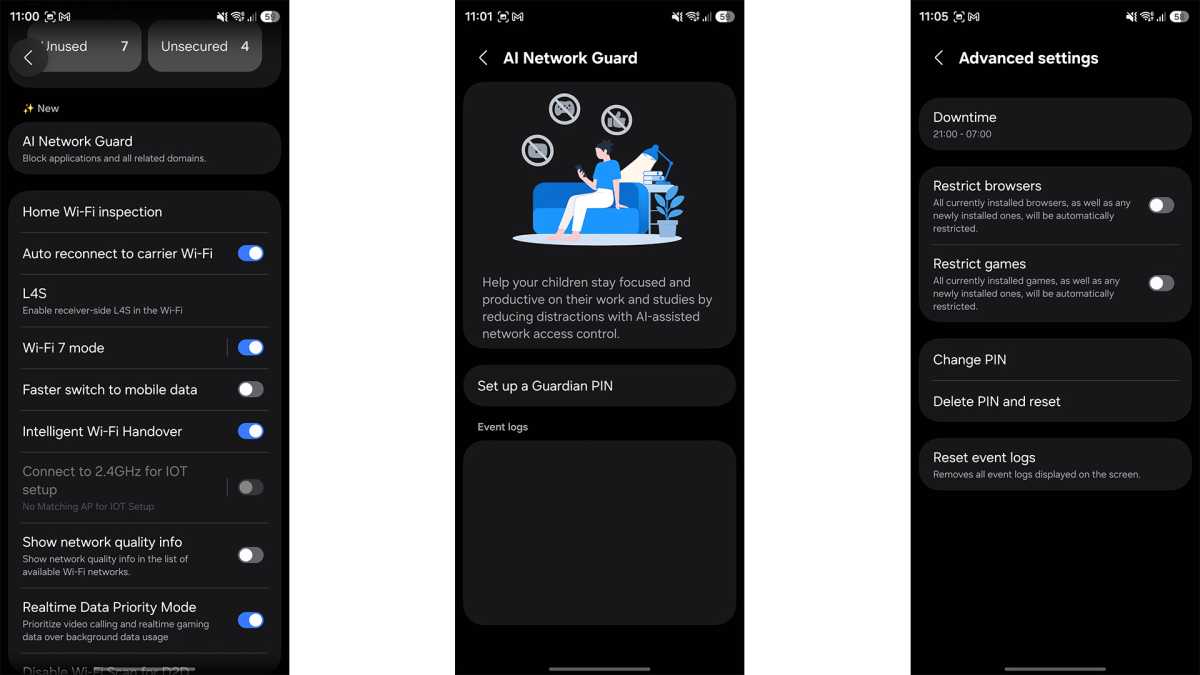
If you need a break from social media, or you can’t help being drawn into Candy Crush every time you unlock your phone, then AI Network Guard might be what you need. It’s primarily designed as a parental control tool, but it’s just as useful for impulsive adults.
With this feature enabled, certain apps will be blocked from accessing the internet until you enter a special PIN code. For most people, that’s just enough friction to make you focus on the task at hand, rather than watching 3 hours of Instagram Reels.
If you really can’t be trusted, though, you could get a friend, partner, or family member to set the PIN for you.
Here’s how to set it up:
- Go to your phone’s Settings, tap Connections, and then select Wi-Fi.
- Tap the three-dot menu in the top-right corner and choose Intelligent Wi-Fi.
- Scroll to the bottom of the page and tap the words Intelligent Wi-Fi multiple times until a confirmation message appears saying “Connectivity Labs is enabled“.
- Open Connectivity Labs and scroll until you find AI Network Guard
- Set up a Guardian PIN by choosing a six-digit code.
- Tap Manage Restrictions, then choose Restrict Apps.
- Choose your problematic apps to block their network access.
- Then, tap the three-dot menu and Advanced Settings
- Tap Downtime to set a schedule for the app blocking
Try Motion Assist on your next trip
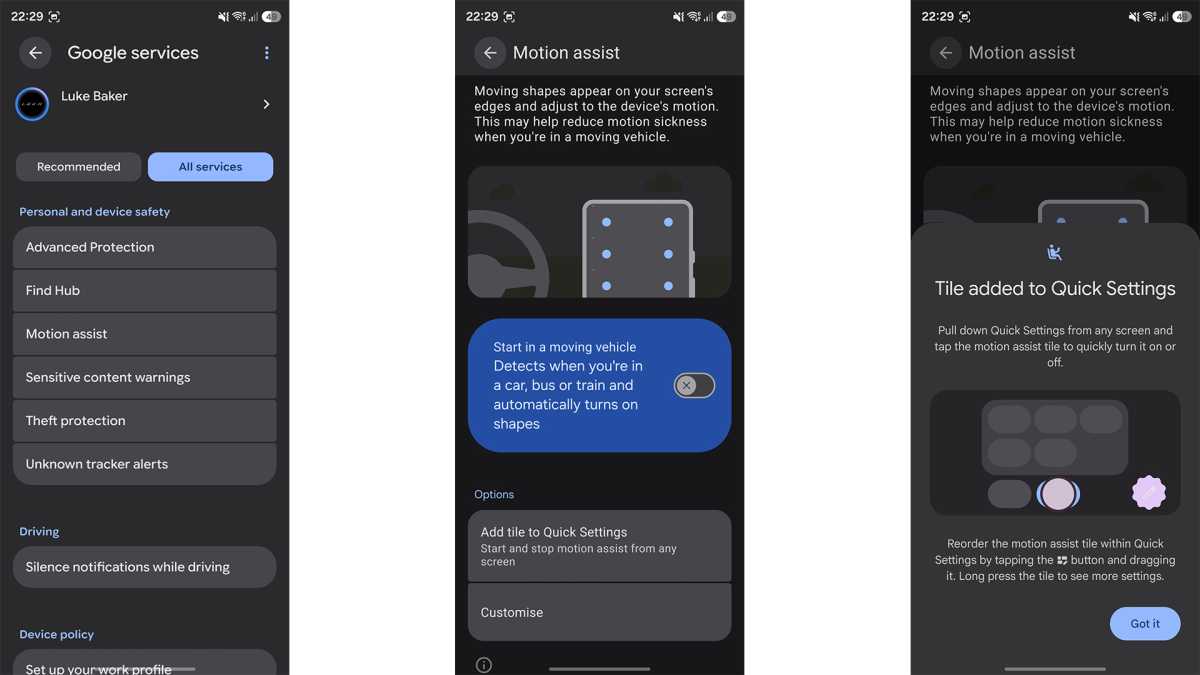
If you suffer from motion sickness, this new feature could be legitimately life-changing. The idea is simple: it displays dots at the edge of your screen, synced with the phone’s built-in gyroscope, and it should dramatically reduce that woozy feeling you get when you’re trying to read on a bumpy road.
Luke Baker
Apple has had a similar feature since 2024, but it’s now built right into Android 17 – and that means it’s on One UI 9, too.
Here’s how to turn on Motion Assist:
- Go to your phone’s Settings app and scroll down to the Google services menu, then tap All services.
- Scroll down to the Personal & device safety section and select Motion Assist.
- Toggle on Start in a moving vehicle. With this enabled, your phone uses its internal sensors to detect when you are traveling in a car, bus, or train, and the visual dots will appear automatically.
- Because automatic detection isn’t always perfect, tap Add tile to Quick Settings. This places a dedicated toggle in your Quick Panel, allowing you to turn the feature on or off manually whenever you need it.
- Tap Customise to adjust how the visual cues look on your screen. You can change the shape (circle, square, pentagon, or diamond), adjust the opacity so they aren’t distracting, and choose a specific color theme.
Use Call Brief to stay organised
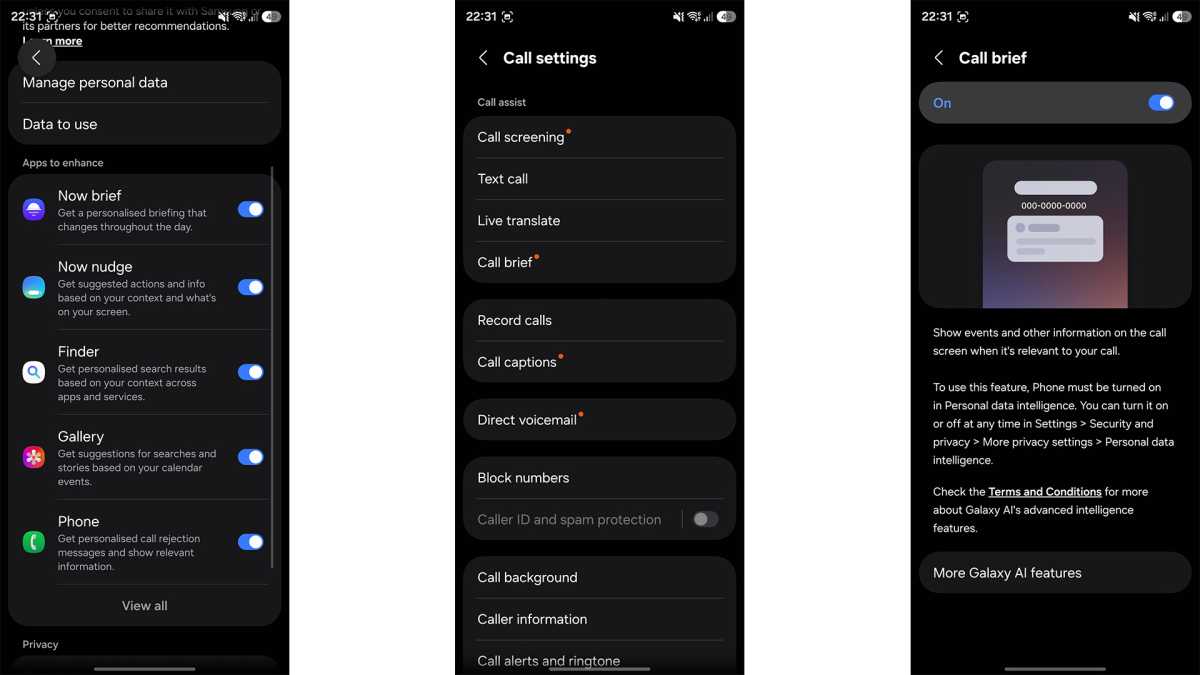
Call Brief might be one of Samsung’s most underrated features – and because it only appears when it has something useful to show you, many users might not even realise it’s working.
Luke Baker
Once activated, Call Brief uses a contextually aware AI model to surface information that’s relevant to your phone calls. Say, for instance, you talk about setting up a meeting; Call Brief might suggest a shared Calendar event automatically adjusted to the speaker’s local time.
In addition, when you’re calling an international number, Call Brief can display the receiver’s local time before you even dial – preventing the embarrassment of an awkward out-of-hours phone call.
Here’s how to turn it on:
- Go to your phone’s Settings, tap Security and privacy, and select More privacy settings.
- Tap on Personal data intelligence. Make sure the toggle next to the Phone app is on.
- Return to your home screen and open the native Samsung Phone app.
- Tap the three-dot menu in the top-right corner and select Settings.
- Look under the Call Assist section and tap Call brief to toggle it on.
Protect your privacy with Quick Lockdown Mode
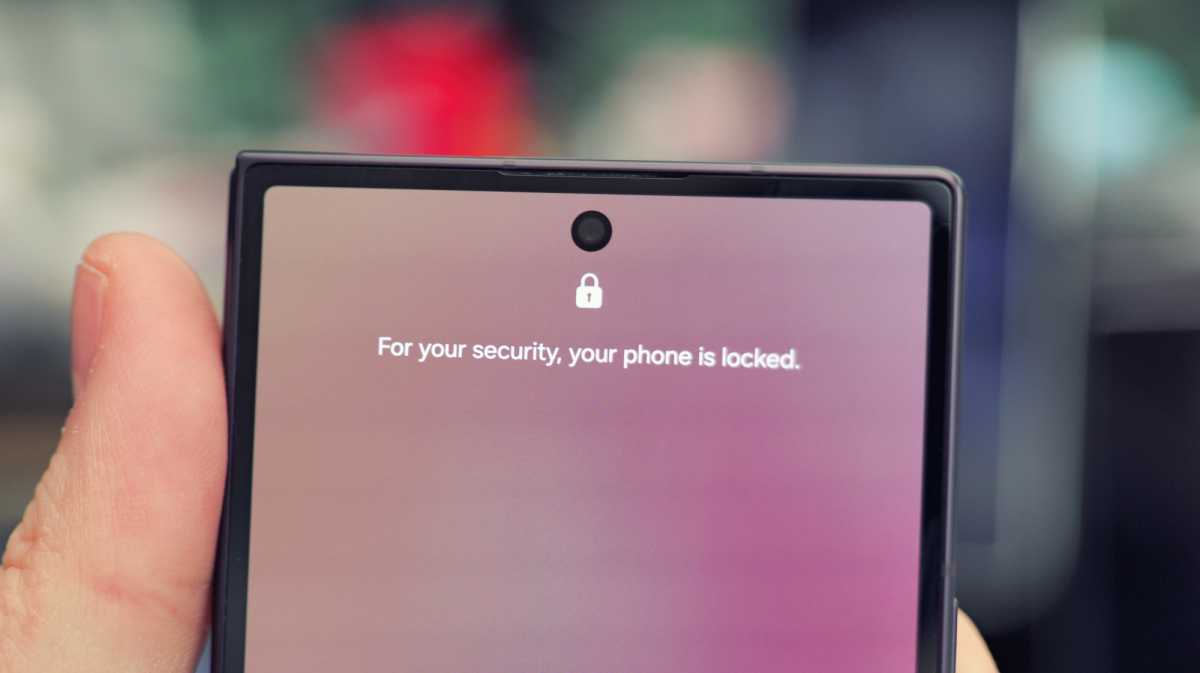
Samsung is very proud of its security features, but biometric unlocking (as convenient as it may be) can allow for unwanted access to your mobile. While it’s easy for a bad actor to hold your phone up and unlock it with your face, or stick your thumb on the reader, learning your PIN code is a much greater challenge.
Luke Baker
Thankfully, with just a quick button combo, you can put your phone into Quick Lockdown Mode. Then, the next time someone attempts to unlock it, your fingerprint and face unlock will be disabled. Using your PIN is the only way in.
Here’s how to use Quick Lockdown Mode:
- Press and hold the Volume Down button and the Power (Side) button simultaneously.
- You’ll see power and reset options on-screen, but crucially, your phone is now in lockdown mode, and biometrics will no longer work.
- To regain access to your phone, just enter your PIN, password, or pattern.
- Entering your PIN automatically disables Lockdown Mode. The next time you lock your phone, your fingerprint scanner and face recognition will work normally again.
Try Bixby’s new Raise to Speak gesture
Many see Bixby as a digital assistant that’s best avoided; Gemini gets all the headline features, and a lot of users never even give Bixby a try. That might be a mistake, though, as Bixby can be super useful for taking control of your Samsung phone.
Luke Baker
Bixby is the better choice when you want to change things on your phone, like adjusting device settings or finding a specific feature, as it has much more control over the device itself. It can also perform complex chains of commands like “find photos from a specific location, create a new album, and share it with a contact.”
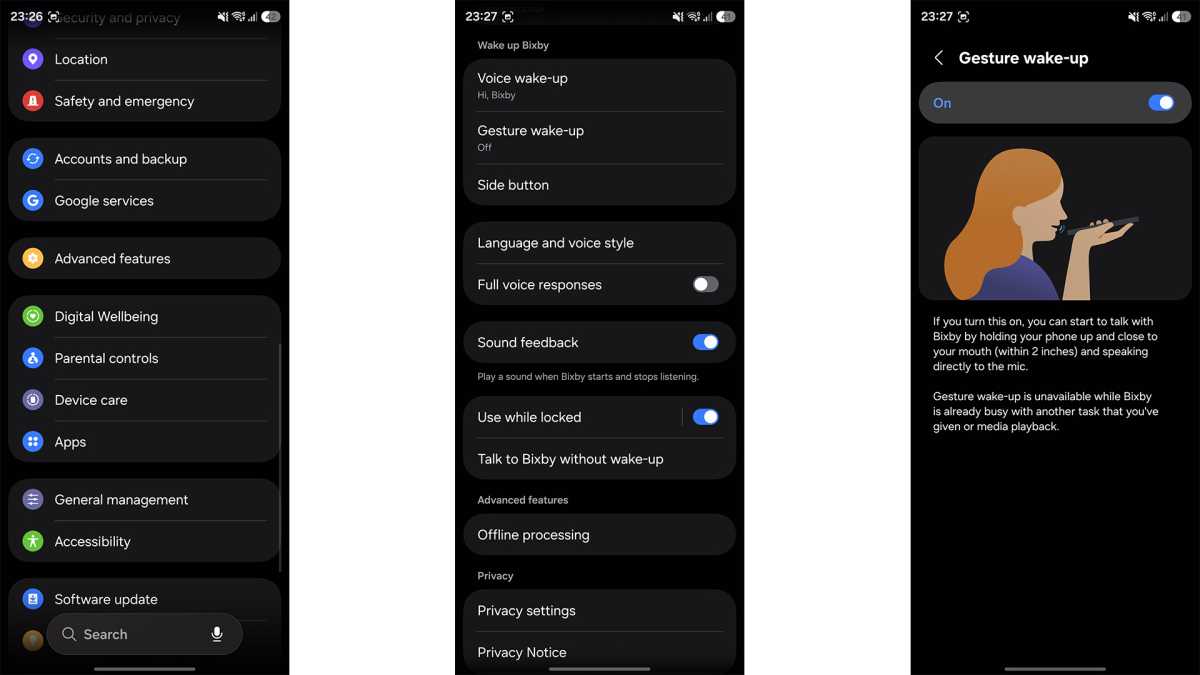
If you’re ready to give Bixby a whirl, you might want to try the new raise-to-speak feature. That way, you can avoid needing to say the wake word, and even leave your lock button mapped to wake up Gemini. Here’s how it works:
- Go to your phone’s Settings app, scroll down, and tap Advanced features. From there, select Bixby.
- Scroll down and look for the new Gesture wake-up option.
- Toggle the switch to the On position.
- With this enabled, you no longer need to press a button or say “Hi Bixby.” Simply pick up your phone, bring it up close to your mouth, and start talking.
Use Audio Eraser on YouTube, TikTok, and Netflix
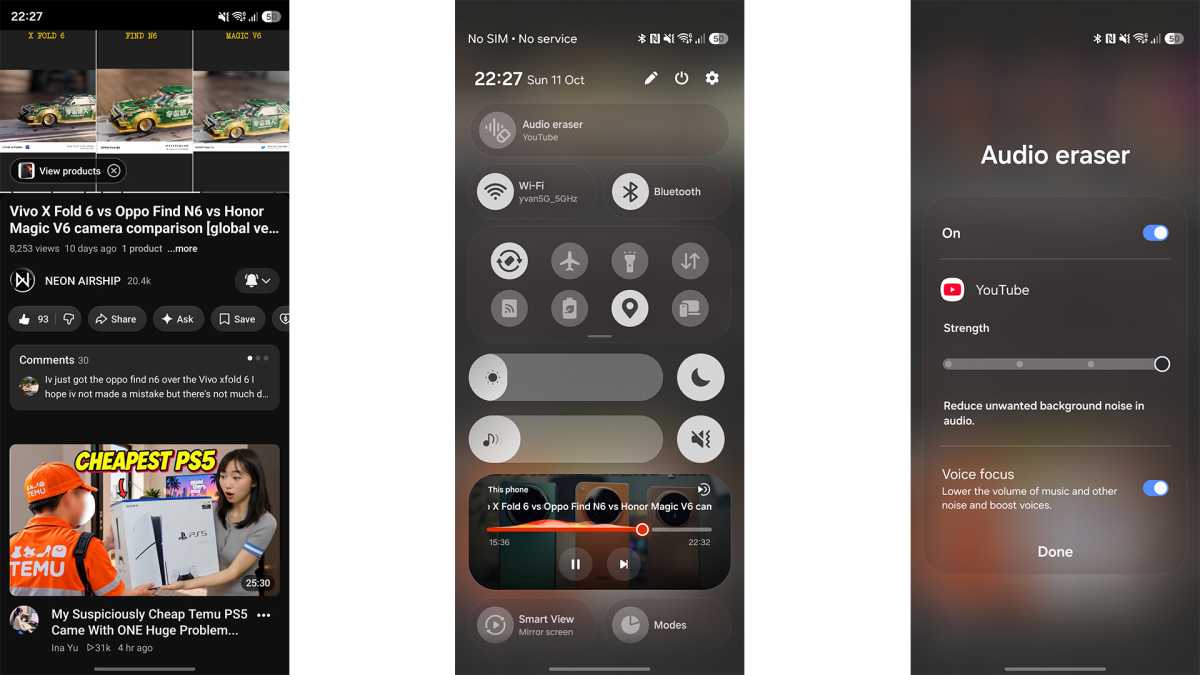
Audio Eraser was introduced as a way to improve the audio on videos recorded with your phone. Then, Samsung expanded its capabilities so that you could use it for content consumption, rather than creation.
Luke Baker
It’s one of those weird features that doesn’t sound too useful at first, but when you try it, you realise how helpful it can be. I was watching a YouTube tutorial with annoying background music that was mixed way too loud, and rather than having to find a different tutorial, I used Audio Eraser to silence the music and boost the vocals. It’s like magic.
Here are the steps:
- Start playing a video on YouTube, TikTok, or Netflix.
- Swipe from the top right to access the Quick Panel.
- A new Audio Eraser button will have appeared at the top; tap on that.
- Now choose your desired strength, and whether or not you want Voice Focus enabled
Access deeper customisation with Good Lock
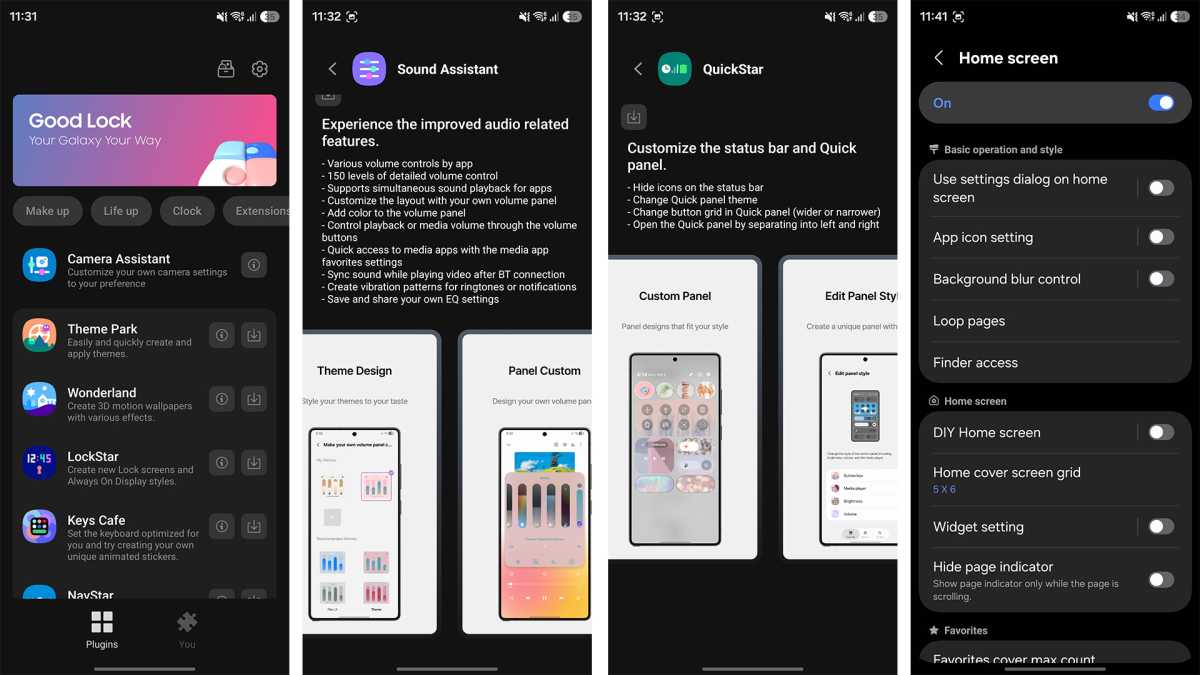
One UI 9 gives you a decent amount of customisation options as standard, but if you’re a power user, or just love customising to the max, you owe it to yourself to give Good Lock a try. It’s available from either the Play Store or the Galaxy Store, and you download it like any other app.
Luke Baker
Inside, there are 25 different modules, each packed with customisation options that can tweak the behaviour of almost anything on your phone. I can’t possibly cover all of the features here, that would be a mammoth undertaking, but I’ll highlight a few of my favourites.
Home Up gives you complete control over the home screen grid, folder layouts and app drawer. You can make things as cluttered or minimal as you like, and even ditch the grid entirely, placing widgets and app icons wherever you like.
Sound Assistant unlocks per-app volume control, a custom EQ and more. QuickStar lets you clean up status bar clutter (like hiding the alarm or NFC icons) or even add a live network speed indicator. The list goes on and on.
Unlock camera potential with Camera Assistant and Expert RAW
Samsung’s camera app is more comprehensive than ever, but if you want true Pro-level controls, you need to learn about Camera Assistant and Expert RAW.
Luke Baker
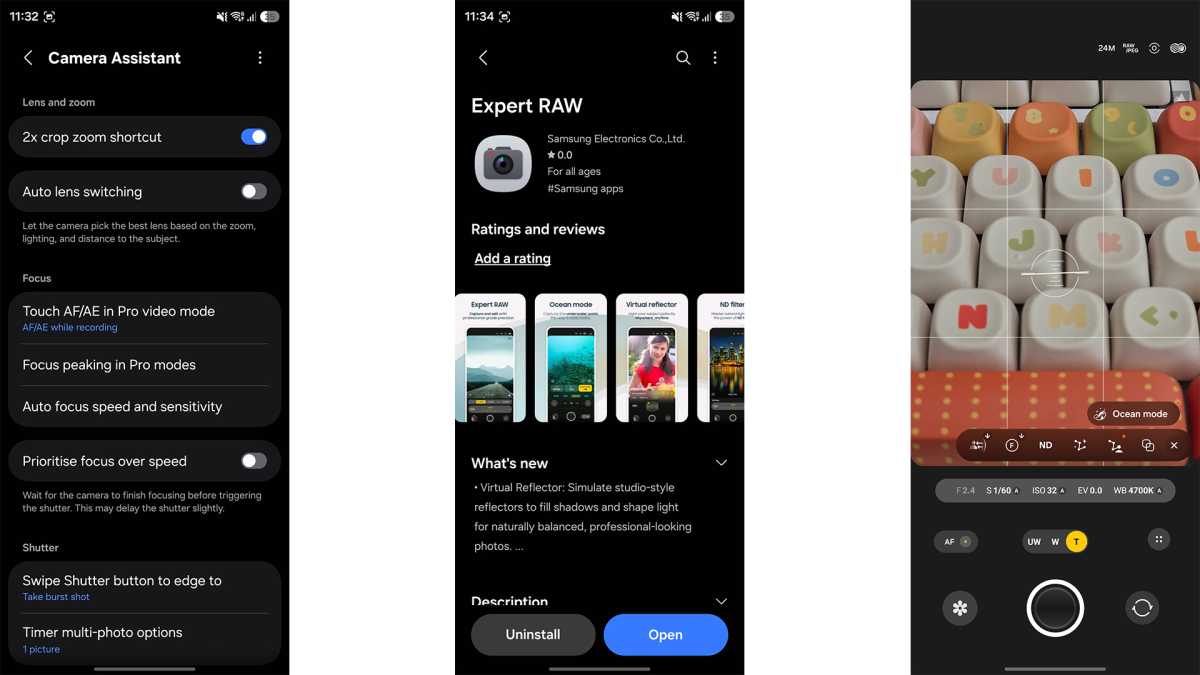
Camera Assistant is another module built into Good Lock, so again, you’ll need to download Good Lock first. In the Camera Assistant menu, you can turn off automatic lens switching, reduce the default sharpening levels, add anamorphic lens support to the default camera app – and so much more. It adds all the controls pro users would want, without needing to switch to a third-party camera app like Blackmagic Camera.
Expert RAW is a little different. It’s a completely separate camera app, developed by Samsung, but wholly focused on professional photography features.
Expert RAW adds some unique features like a dedicated Astrophotography mode with star tracking for long exposures, as well as Digital ND filter simulation and a virtual reflector to add a simulated fill light to your shots. If you’re looking to try out some new photographic techniques, it could be the missing piece of the puzzle.
As you can see, there’s so much to explore in One UI 9. Don’t have a compatible device? Grab one of the best Samsung Galaxy phones to get in on the action.