Here’s i switched off these 5 Android settings and never looked back
I thought I knew my phone pretty well, but it turned out there was a lot I’d forgotten.
I found most of these settings by accident. I was looking for screenshot format settings, as someone had told me that Pixels store screenshots as PNG by default and you can switch it to JPEG.
I ended up in my privacy settings trying to find it, which led to location, which led to about forty minutes I hadn’t planned on spending. I was supposed to be replying to emails but instead I wound up making my phone more private. And I’m glad I did.
Here’s what I turned off and what I noticed afterwards.
1. I stopped Android from collecting usage data
Nikhil Azza / Foundry
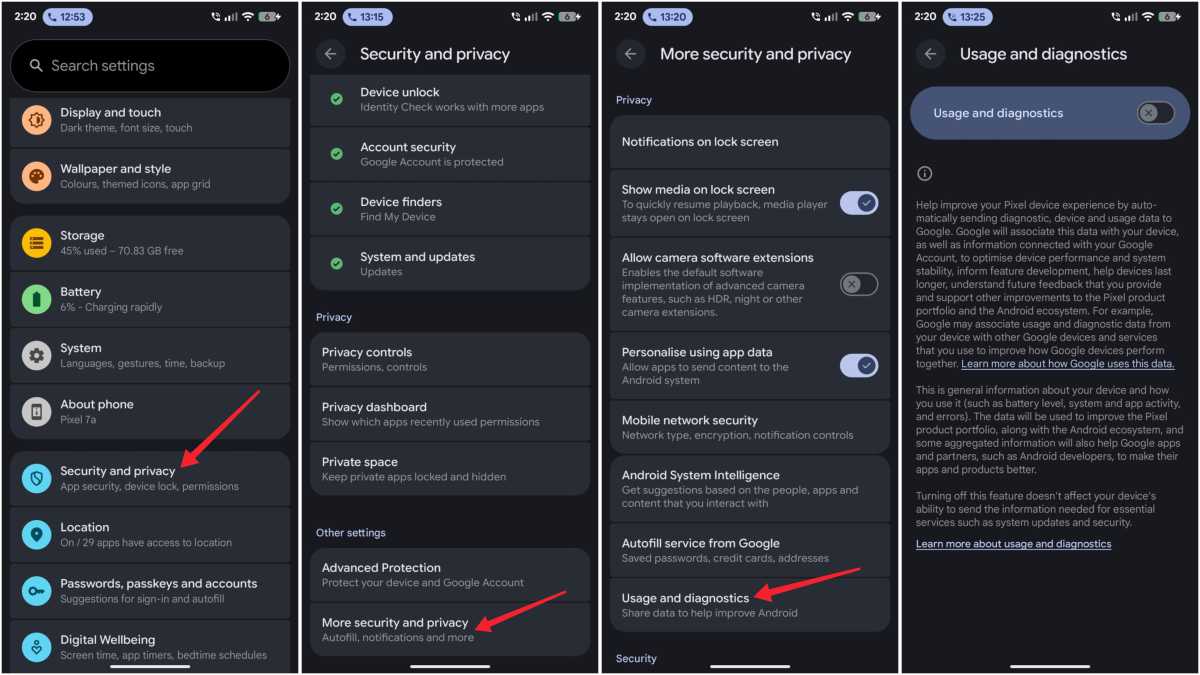
I’d scrolled past these options plenty of times. “Usage and diagnostics” sounds like something a developer would care about, not a user, so I never gave it a second thought. It turns out it’s much more about the data your phone sends to Google than the name suggests.
It sends data about things like crash reports, battery performance and how apps are behaving. According to Google, it helps improve Android, which is probably true. But my phone and the apps already generate plenty of data as part of everyday use.
As someone who’s fairly privacy-conscious, properly reading and thinking about the words “automatically sends diagnostic, device and usage data to Google” made me pause. Turning it off made no difference to the way my phone works but did give me some peace of mind.
It’s likely that I agreed to this during setup, three years ago. I don’t remember doing it.
Find it at: Settings > Privacy > Usage & diagnostics
2. I stopped Wi-Fi from auto-connecting to networks I didn’t recognise
Nikhil Azza / Foundry
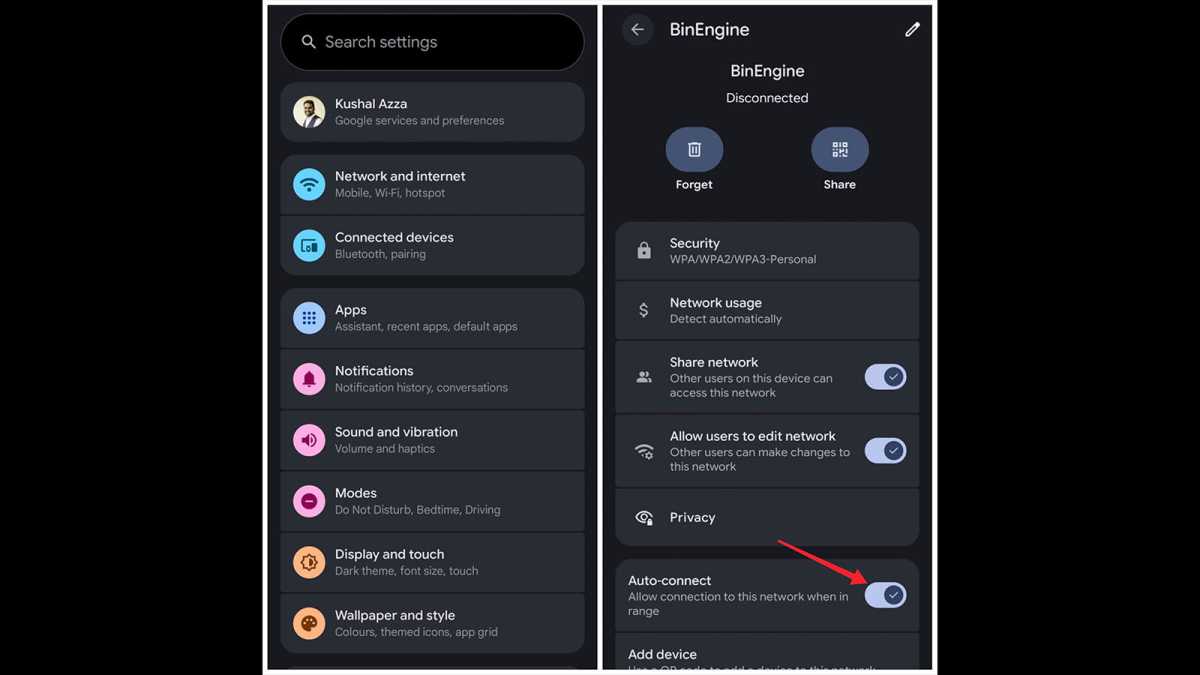
Your phone will reconnect automatically to every nearby saved network it recognises. Usefully, that includes your home Wi-Fi and your office. Less usefully, there’s the Wetherspoons you last visited six months ago, the hotel from a work trip, the coffee shop that closed down in March. The network name is stored once you join it and when the phone spots it again, it hops back on.
You can find saved networks in your Wi-Fi list. Any that you don’t use or don’t recognise, tap on and turn off auto-reconnect. Go through the full list at some point. Most people have dozens of saved networks and actively use only a few of them.
I revoked a number of permissions after realising I’d failed to protect my banking information. I was in a coffee shop I’d been to a few months before and I’d opened Monzo to check something. A couple of minutes later I noticed the Wi-Fi icon in my status bar instead of my 5G signal. My phone had quietly connected to the cafe network from the previous visit.
I’d been on an open public network while looking at my bank account and had been about to tap through to move some money.
That evening I went through my saved networks. There were thirty of them and I could confidently place maybe nine.
3. I prevented nearby device scanning
Nikhil Azza / Foundry
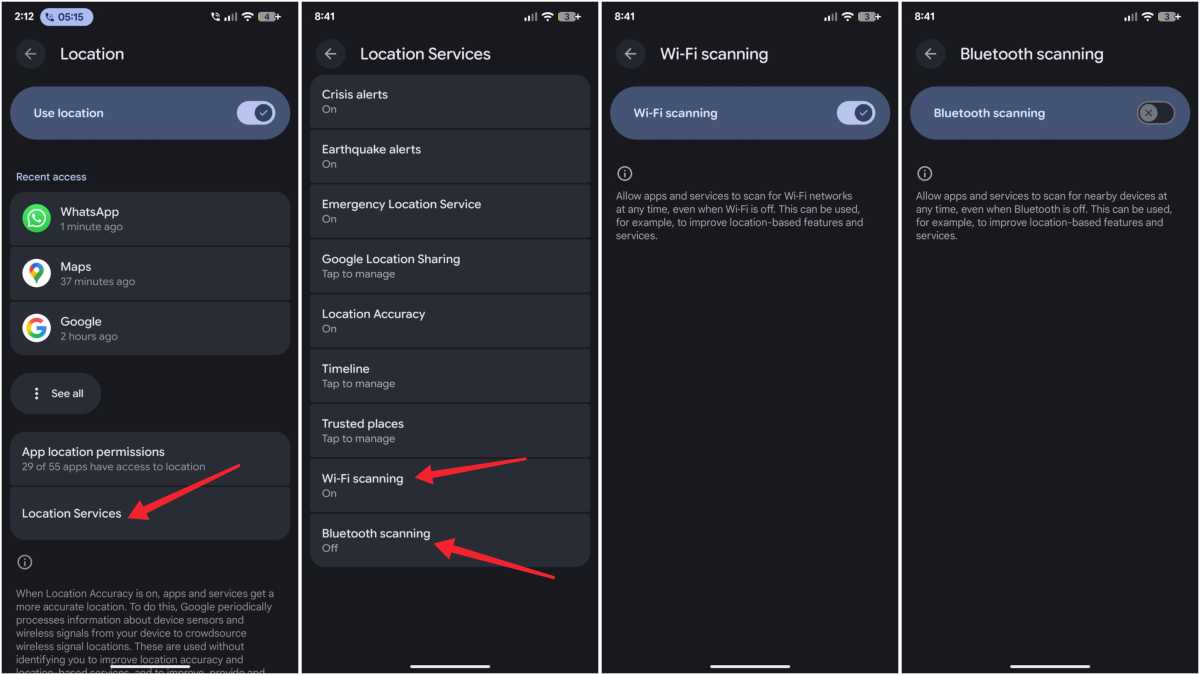
This is a setting I’d overlooked before. Android can scan for nearby Wi-Fi networks and Bluetooth devices even when you’ve switched both off. That’s not tuned down but switched off, from the quick settings panel – the thing you pull down specifically to stop them.
The scan runs anyway. The reason is better location accuracy, and the scans can also help with faster reconnection. The effect is that your phone keeps its radio alive, quietly running in the background.
Go to Settings > Location > Location Services and look for Wi-Fi scanning and Bluetooth scanning as separate toggles. I found it because my overnight battery drop had been sitting around 8% when it should have been closer to 4 or 5%. I was going through everything methodically, turning things off one at a time.
These two settings were the ones that moved the number. The difference wasn’t dramatic but it was enough for me to notice. I’d been running background scans every night for three years, so my phone could reconnect a little faster than it otherwise would have.
That’s a trade I don’t want to make.
4. I stopped letting Android read too much app data
Nikhil Azza / Foundry
I only started paying attention to this one after something odd happened.
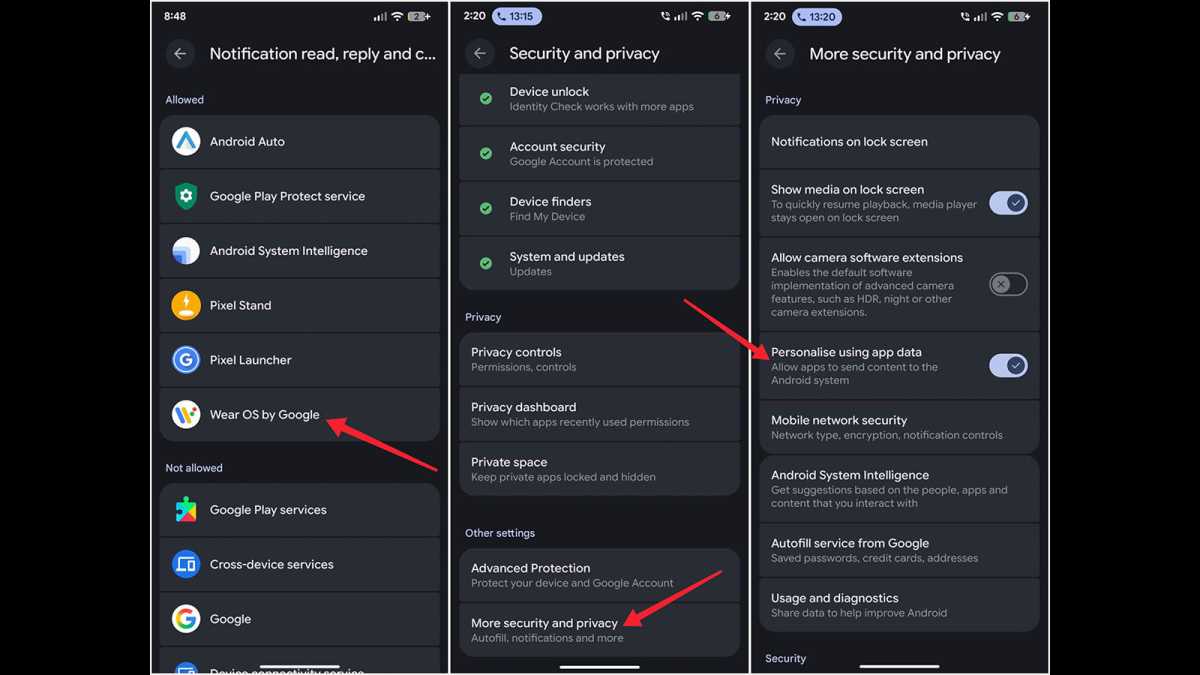
The feature allows apps to send information to At a Glance, which can use it for tasks and notifications.
What happened: I’d spent about twenty minutes inside a budgeting app, going through some specific features I was trying out for work. Nothing unusual. But the next time I opened the Play Store, one of the first things in Suggested for You was another finance app that seemed related to what I’d been looking at. The two apps had no connection I’d made from my side of the interface.
Maybe it’s a coincidence – I couldn’t prove the two were connected. But I turned the setting off that day and the suggestions were quieter. At a Glance still shows my calendar and the weather, which pull from different sources and weren’t affected. What disappeared was the other layer, the recommendations that seemed personalised in a way I hadn’t asked for.
Find it at: Settings > Privacy > Personalise using app data.
5. Notification access I forgot I’d granted
Nikhil Azza / Foundry
I’d been in this once before, years ago, to set up a Wear OS app for a smartwatch. I hadn’t opened it since.
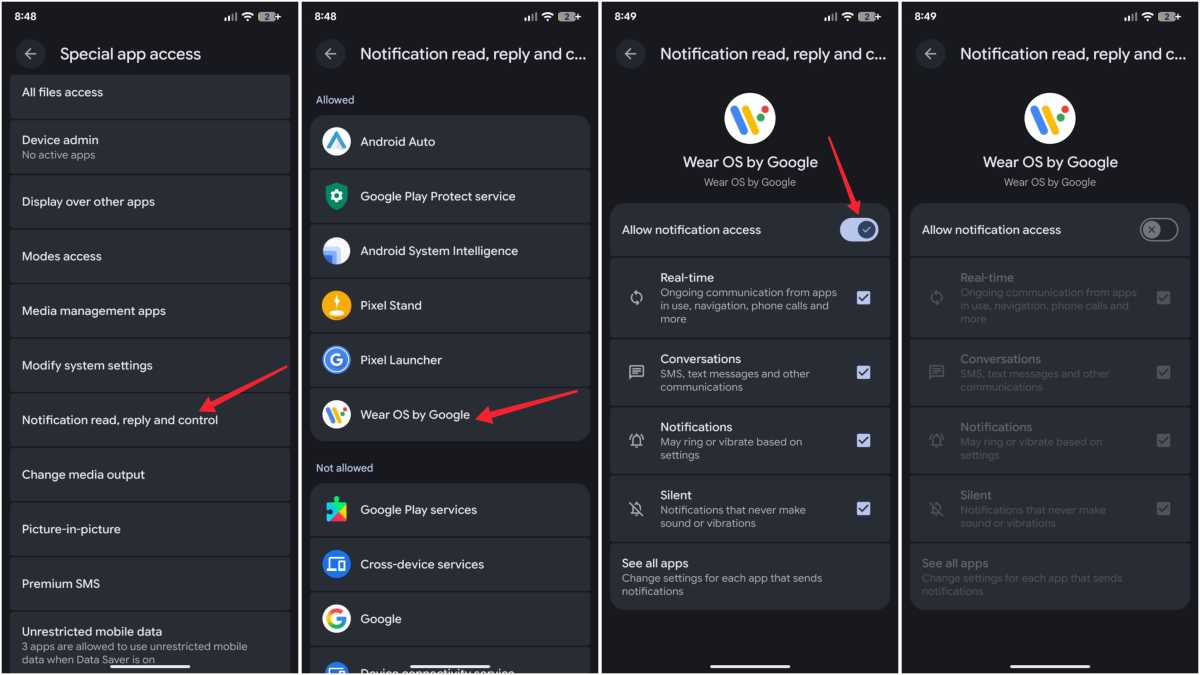
Notification access lets an app read notifications that come through on your phone. That includes banking alerts, messages, two-factor login codes. Essentially everything that lands in your notification shade is readable in real time. I suspect this is one of those permissions most people don’t think to check, beyond camera and microphone access, which are more obvious permissions to switch off.
Check your list. I guarantee that there’s something on it you haven’t thought about recently. I found five:
- A Wear OS companion app for the watch I’d sold eight months earlier.
- Niagara Launcher, which I’d used for about three weeks before switching back to the Pixel default.
- A fitness app from Leap Fitness that I genuinely can’t account for. I don’t even remember installing it. It was just there, with full notification access, apparently since shortly after I got the phone.
- A smart home app I’d moved away from.
- And one Google service I’d never consciously interacted with that came bundled from the factory.
I revoked access for all and uninstalled three.
Niagara had been reading my notifications for the better part of a year after I stopped using it. Every banking alert, login code, and OTP from every account I have. During the weeks I was actually using it as my launcher, that made sense. After I switched back to the default, I just never checked.
Find it at: Settings > Apps > Special app access > Notification read, reply and control.
We put a lot of faith into default settings – much more than we should. Five minutes to make a few changes could make your phone much more secure.
If you have a Pixel, you can look forward to new ways to personalise it. Meanwhile, Samsung fans can look forward to more product launches this year.