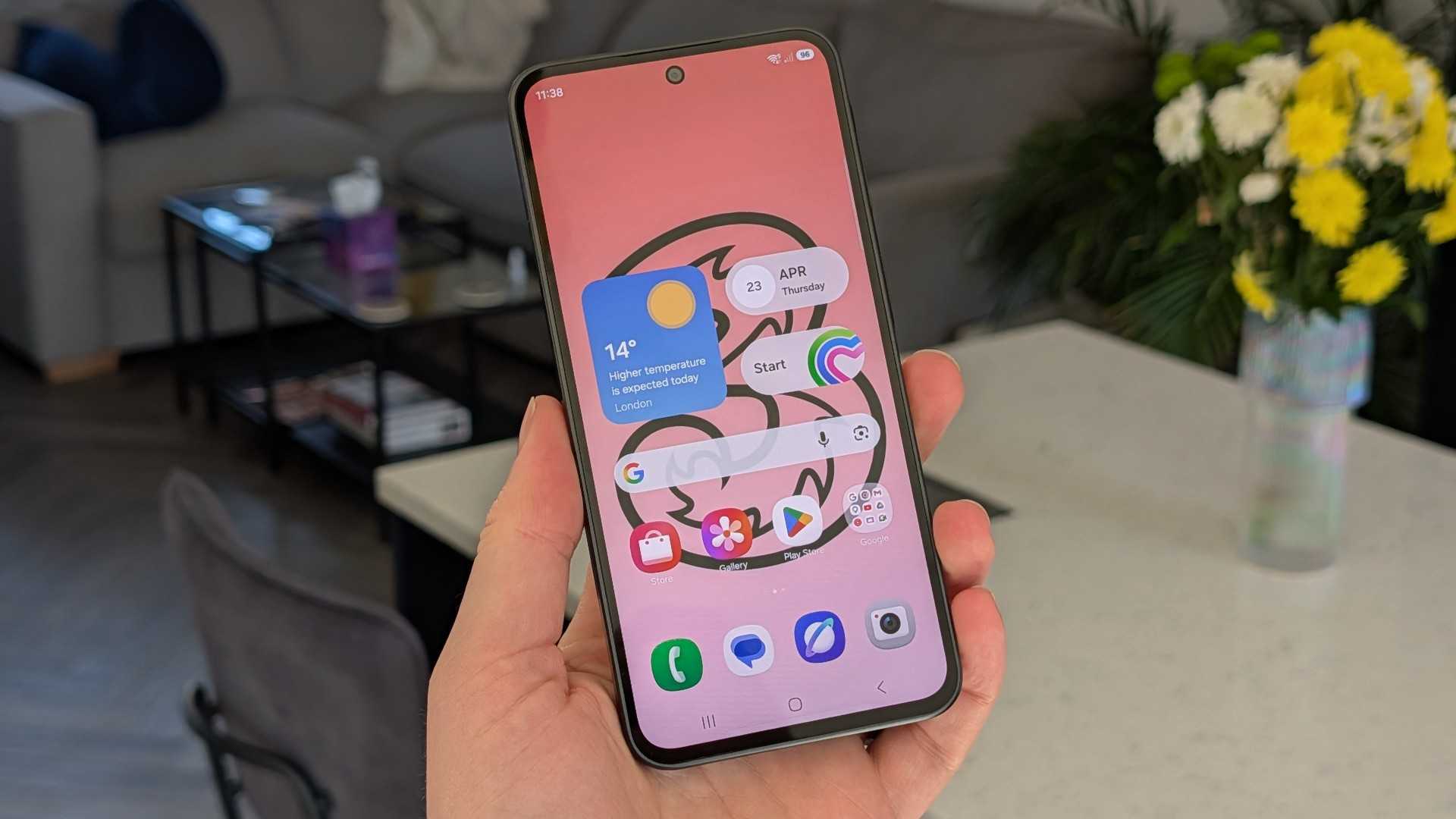
A Look at the handset icon is a secret weapon against poor phone reception
Poor reception in the basement, at the office or while out and about is annoying, but there’s a solution. Your smartphone has an inbuilt feature designed specifically for moments like these. It’s known as Wi-Fi Calling, it’s free, it doesn’t require an app and works with your normal phone number. Read all about it here.
What does the phone icon with Wi-Fi waves mean?
If you see a small icon in your smartphone’s status bar consisting of a phone and Wi-Fi waves, it means that Wi-Fi Calling is active. Your mobile isn’t currently making calls via the mobile network, but via your Wi-Fi connection. Nothing changes in terms of the call, although it may affect what you’re charged. You use the same phone number, the same phone app, and the person you’re speaking to won’t notice any difference.
Wi-Fi Calling isn’t an app-based service like WhatsApp or FaceTime, but a technical standard agreed upon jointly by smartphone manufacturers and mobile network operators. What makes it so handy is that it works across all operating systems and networks. Furthermore, it doesn’t matter whether the person you’re calling is also connected to a Wi-Fi network or has the feature enabled.
The main benefits of Wi-Fi Calling
The most obvious advantage is that you can make calls even when there’s no mobile signal – as long as you’re connected to a Wi-Fi network. This is useful in basements, in modern office buildings with heat-insulated windows, or in areas with poor mobile coverage. With a stable Wi-Fi connection, call quality is often significantly better than with a weak mobile signal.
Wi-Fi Calling is particularly useful when abroad. If you’re connected to a hotel Wi-Fi network abroad and make a call home, it’s billed as a domestic call. With a flat-rate plan, it’s therefore free and saves you the hassle of roaming charges. This also applies to incoming calls to your mobile. If you leave the Wi-Fi range during a call, your smartphone will seamlessly hand the call over to the LTE or 5G network. You won’t notice a thing – the call simply continues.
Beware of hidden costs: Wi-Fi calls abroad incur charges
On the other hand, if your Wi-Fi is unstable or slow, call quality will suffer. And be careful when abroad: if you use Wi-Fi Calling to ring a local number – for example, a local restaurant – it will be charged as an international call from your home country. This also applies within the EU, as EU roaming does not apply to Wi-Fi Calling.
Tip: If you want to call local numbers while abroad, it’s better to switch off Wi-Fi Calling and use the standard mobile network.
How to enable Wi-Fi Calling on an iPhone
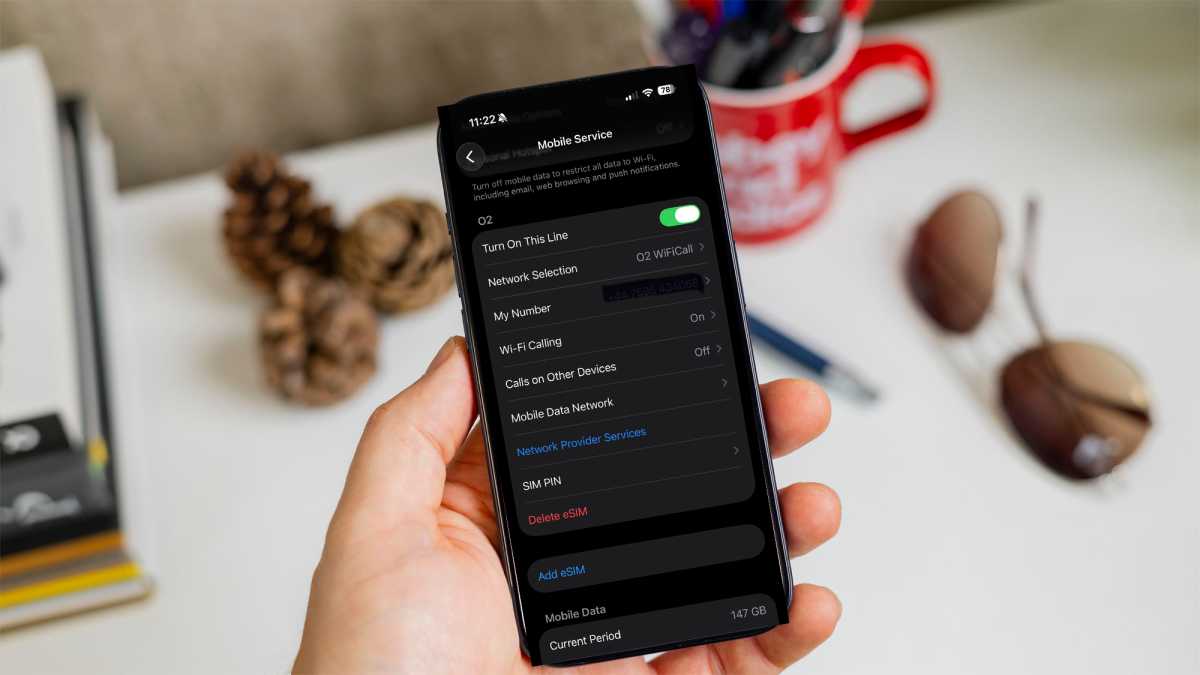
Dominik Tomaszewski / Foundry
- Open the Settings app and tap ‘Mobile Service’.
- There you’ll find ‘Wi-Fi Calling’. Tap it and enable the ‘Wi-Fi Calling on this iPhone’ option.
- If you’re using a dual-SIM model, first select the desired line under ‘Mobile’. If the menu option doesn’t appear, your current tariff doesn’t support this feature.
How to enable Wi-Fi Calling on Android phones
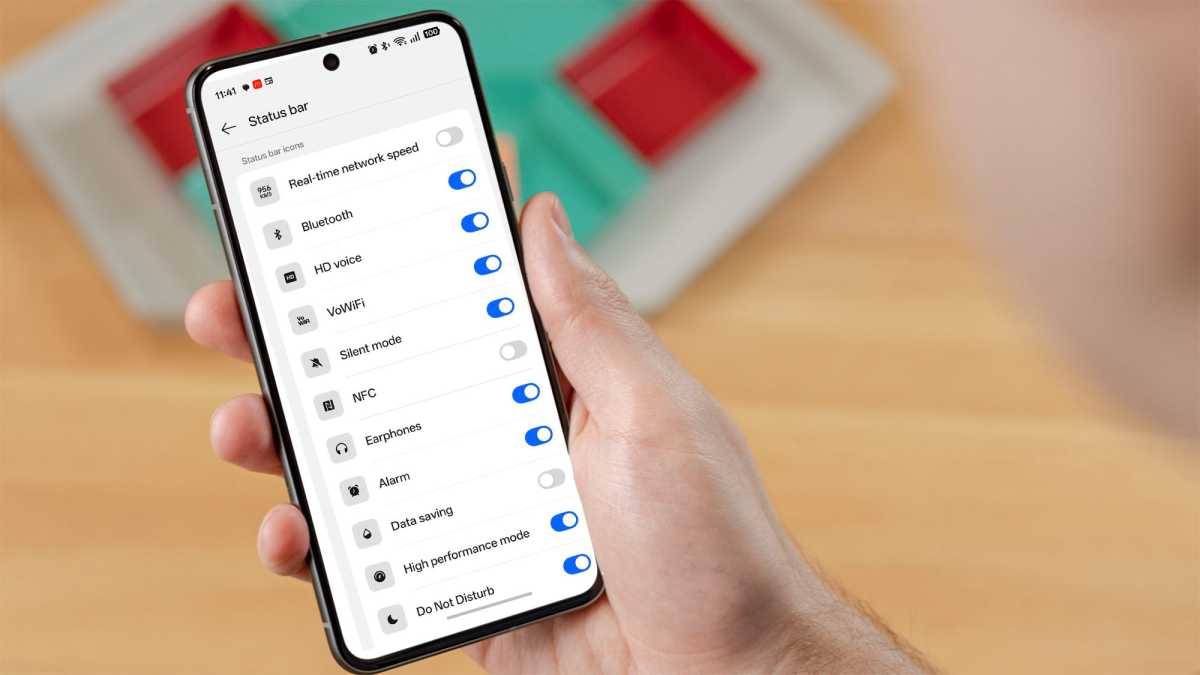
Dominik Tomaszewski / Foundry
This process may be slightly different depending on your OS. You may also find Wi-Fi calling labelled as VoWiFi (Voice Over Wi-Fi).
- Open the Phone app, tap the three-dot menu in the top right-hand corner and select ‘Settings’.
- There you’ll find the ‘Wi-Fi Calling’ option. Turn it on.
- Alternatively, you can access the feature via the general Settings app under ‘Network & Internet’ or ‘Connections’. The exact path may vary slightly depending on the manufacturer. If the option does not appear at all, your provider does not support Wi-Fi Calling on this device.
Note: You can’t choose whether individual calls are routed via Wi-Fi or the mobile network. You can only enable or disable the feature altogether. You can usually tell whether a call is actually being made via Wi-Fi by the phone and waves icon in the status bar. However, this is not the case with all smartphones. In many cases, they display a Wi-Fi call in the same way as a standard phone call.
Wi-Fi Calling isn’t working – what should you do?
First, check whether your mobile plan and your smartphone support this feature. Switch Wi-Fi Calling off, wait a few minutes, then switch it back on. It often helps to switch to aeroplane mode briefly and then switch it off again.
On an iPhone, you can also reset the network settings under Settings. Have a look at your router settings too, as some devices block Wi-Fi calls by default.
For more mobile phone use advice, check out how to spot and foil AI scams.