Understanding android users to get a free backup upgrade
Google is currently working on improving data backup on Android. Following a significant step in this direction back in February, all Android users will now benefit from a new feature that gives you more choice in what you back up.
The upgrade allows you to manage and control backups more precisely, according to 9to5Google. It enables you to create and manage backups for each individual app. Previously, you could only enable app data backups globally, meaning that you either back up every single app – or none.
Once activated, your device backs up the data to cloud storage. You’ll have limited storage space unless you have a Google One subscription. With a subscription, you’re guaranteed at least 15GB, provided you’ve registered your phone number.
It means that the ability to back up individual apps selectively is a huge advantage. If you selectively back up only your most important apps and data, you may be able to avoid paying for more storage.
It’s important to say that if you enable cloud backup for a specific app and then disable it again, all data that has already been backed up will be deleted and gone forever.
How to manage your backups
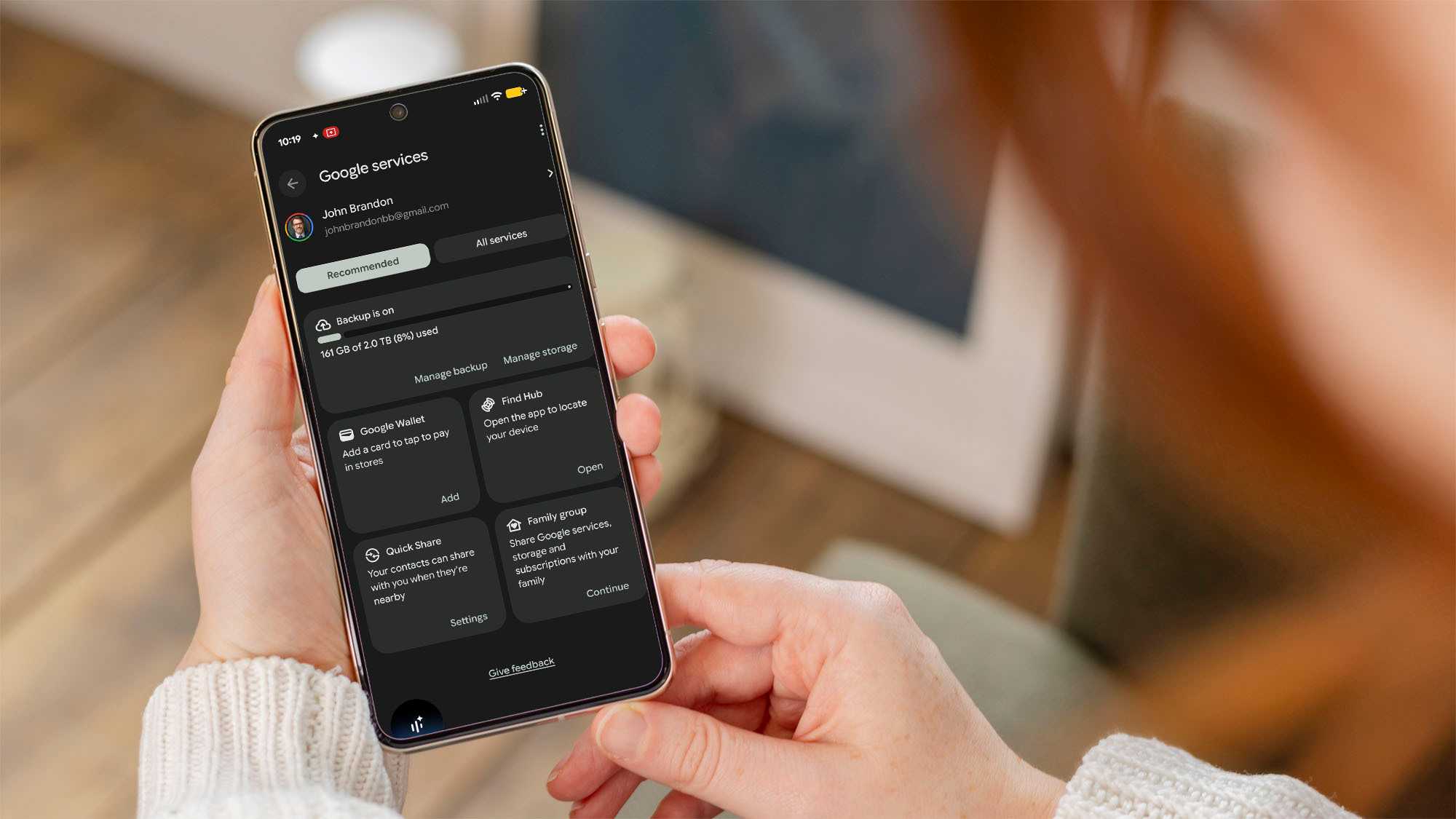
You’ll find the new backup option in your Android device’s settings under Google Services > Backup > Backup details.
There you’ll see a list of suggested apps that can be backed up, sorted in descending order by storage usage. You can view all other apps via the advanced view.
You can also choose whether data should be backed up via Wi-Fi only or via mobile data as well. Bear in mind that that this may result in high data use if you’re on the move.
Who will get this feature?
Google is gradually rolling out the new backup feature to all users who are already on Android 16 or Android 17 (these devices will get the update). Primarily, that means Google Pixel smartphones, with other manufacturers set to follow in the coming weeks.
The update is part of Google Play Services version 26.24. Most users will receive this update automatically. You can check which version is currently installed on your device by going to Settings > Apps > All apps > Google Play Services.