Left behind? ways to safely install Android 17 on unsupported phones
Nowadays, smartphones are rarely discarded due to outright hardware failure.
Instead, it is often the lack of software support that forces users to buy a new one: after a few years, major Android updates cease, security vulnerabilities remain unpatched, and new apps eventually require a more up-to-date version of the operating system.
Yet many older devices still have enough processing power for everyday use. Alternative operating systems (custom ROMs) offer a solution here: they extend the lifespan of smartphones, provide security updates and do away with cluttered manufacturer interfaces. Thanks to new web installers in the browser, getting started is now easier than ever – although the community is currently split into two camps.
Whilst the particularly secure GrapheneOS brings the brand-new Android 17 exclusively to (older) Google Pixel phones, the more flexible LineageOS provides well over 100 models from other manufacturers with the mature Android 16. The latest version, LineageOS 23, brings the Google system to devices that have long since stopped receiving official updates.
The team is already working behind the scenes on the successor version, LineageOS 24 (based on Android 17) – though, as is typical for the community, a fixed release date has not yet been set.
LineageOS: Android 16 without bloatware
LineageOS
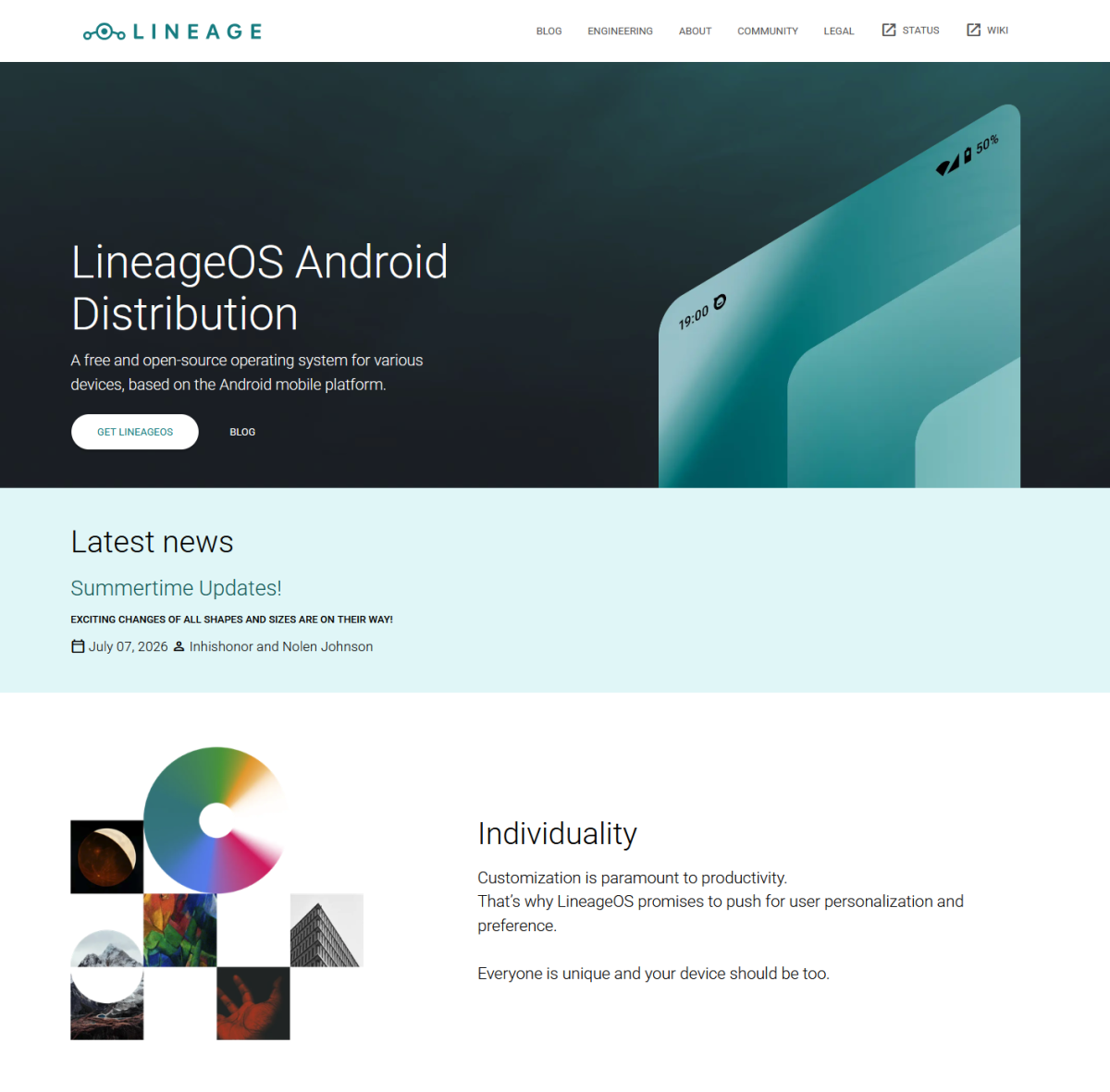
LineageOS is an alternative Android operating system based on the open-source Android code (AOSP), with the current version, LineageOS 23, running on Android 16. It is developed not by a manufacturer, but by an international community. The aim: to keep smartphones up to date for longer and give users more control over their devices.
LineageOS was launched in 2016 as the successor to the well-known custom ROM CyanogenMod. Since then, the project has developed into one of the most important Android alternatives. It supports numerous smartphones and tablets from various manufacturers – including models from Samsung, Xiaomi, Motorola, Sony, OnePlus and Google.
The major advantage over the original software from many manufacturers is that LineageOS comes without any additional apps, adverts or unnecessary services. Users decide for themselves which components they wish to install. Those who need Google services can install a suitable package. Those who wish to share as little data as possible with Google can also use the system largely without Google.
Key benefits include:
- Up-to-date Android versions, even for older devices
- Regular security updates
- Fewer pre-installed manufacturer apps
- Greater data privacy and control
- Numerous customisation options
This makes LineageOS particularly suitable for users who want to keep using their smartphone for longer, rather than replacing a device that is still technically sound simply because it no longer receives updates.
Modern Android versions bring new features to older mobiles
Whether you’re using the latest LineageOS 23 on Android 16 or, as a Pixel user, are already running Android 17 via GrapheneOS (on which LineageOS 24 will also be based in future): upgrading from an older version of Android promises much more than just a new version number. The latest generations bring numerous improvements in security, usability and efficiency to devices that have been phased out.
Older smartphones in particular benefit from optimised background processes and a leaner system. This can have a positive impact on speed and energy consumption – especially for devices whose original software has become increasingly bloated over the years.
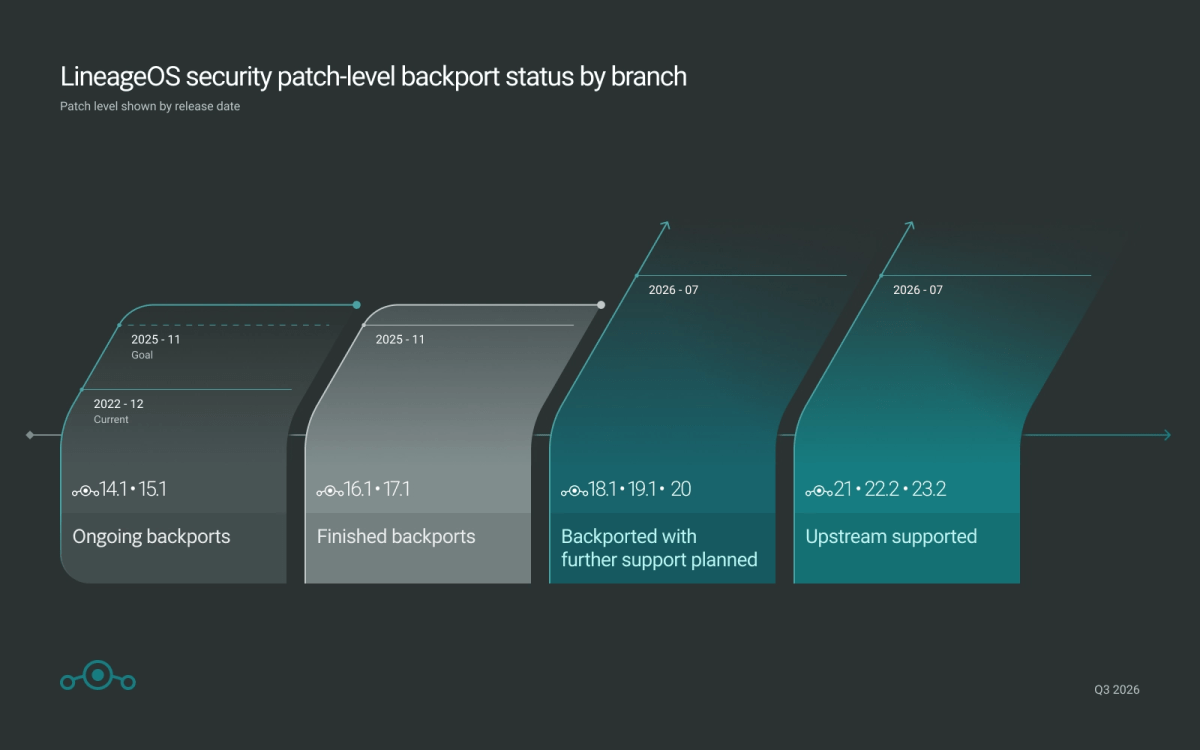
Users also gain access to the latest security mechanisms and Android security patches. LineageOS regularly integrates these into its builds and endeavours to roll out improvements to older supported versions as well.
LineageOS
The developers have also revamped the in-house update app. It now aligns more closely with Google’s current design language and displays the security level specified in the Android Security Bulletin before an update is installed.
This gives users a clearer view of which security measures are installed with each update. Furthermore, system updates are now streamed by default. This conserves the often limited storage space on older devices and speeds up the installation process.
Supported devices: Not every smartphone is compatible
The most important step before installation is to check whether your smartphone is supported at all. Not every Android device can run LineageOS.
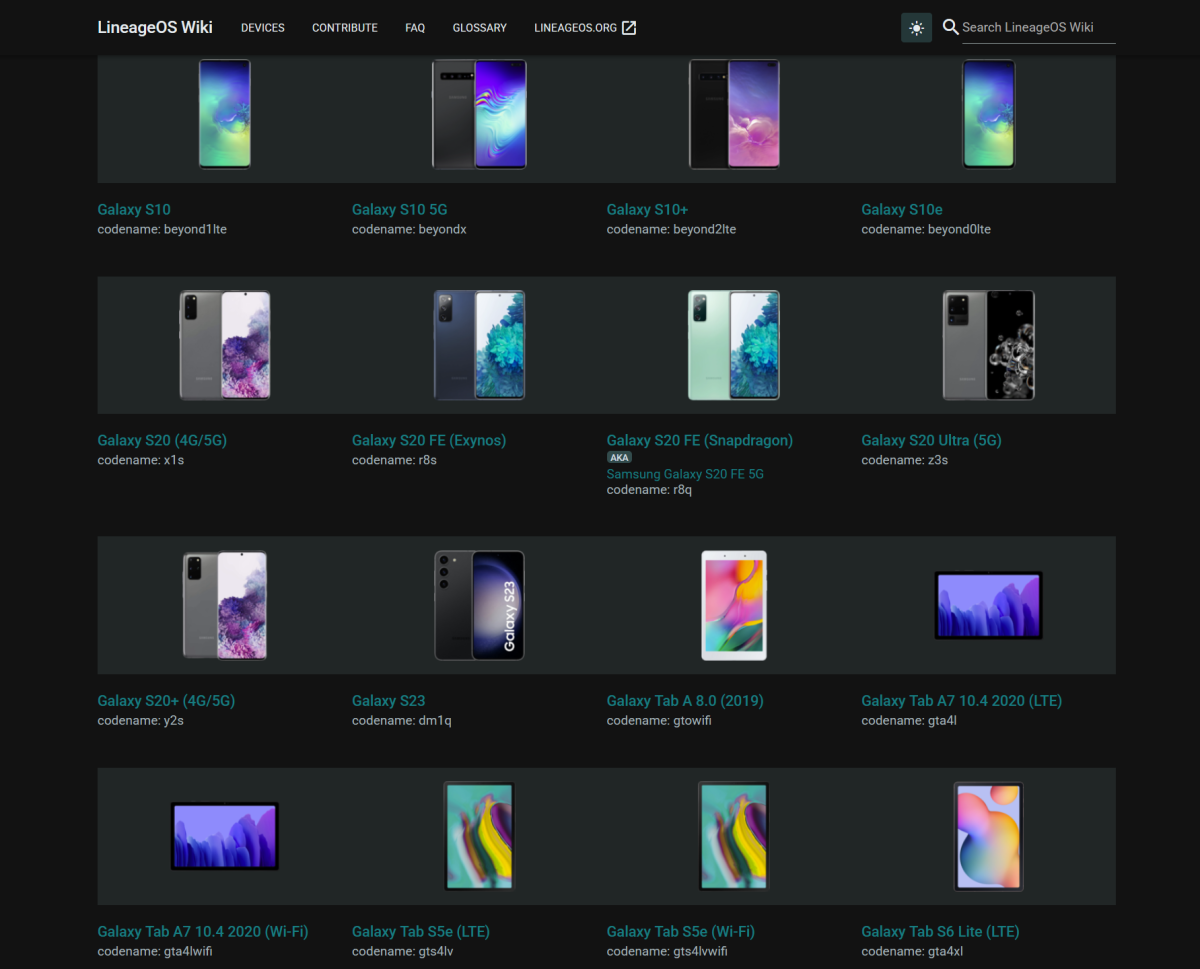
You can find the official device list on the LineageOS Wiki. It lists all compatible models, including installation guides, downloads and device-specific notes.
LineageOS
Be sure to check the exact model name. A Samsung Galaxy S20, for example, is not automatically compatible with every variant in the series. Manufacturers often sell several versions of a smartphone with different processors or modems.
A wide range of older devices is currently supported. Of particular interest, of course, are smartphones that are still technically capable but no longer receive updates from the manufacturer.
Note on future upgrades: If you opt for LineageOS 23 (Android 16) now, you won’t need to worry about data loss when LineageOS 24 (Android 17) is released later. Switching to a new major version can usually be done without a factory reset: Instead of using the automatic updater, you install the new operating system image manually once via the smartphone’s recovery environment (using what is known as ADB sideloading) – your installed apps, photos and settings will remain intact.
Before installation: Points to bear in mind
A custom ROM is not a standard app update. The installation alters the smartphone’s entire system software. You should therefore prepare thoroughly using the following checklist:
- Full data backup: Back up your photos, videos, contacts, documents and important app data. When you subsequently unlock the bootloader, the internal storage is usually completely wiped.
- Two-factor authentication (2FA): Think about your account security. If you use authenticator apps, you must back up your recovery codes or transfer your accounts to another device beforehand.
- Unlocking the bootloader: To allow third-party software to run at all, this manufacturer-imposed security barrier must be opened. The exact procedure varies depending on the smartphone model.
- Weighing up warranty and risks: Unlocking the bootloader may affect the manufacturer’s warranty or specific security features. With older devices, this is often negligible in practice – nevertheless, it is better to find out in advance.
Installing LineageOS: The web installer makes it easier
For a long time, installing a custom ROM involved several complicated steps: installing the Android Platform Tools on your computer, entering cryptic commands via the command line, manually transferring files, and then installing the recovery and system. With the new, browser-based Lineage Flash Tools, the team has significantly simplified this process.
Important to note: The tool does not start automatically when the device is connected and does not download the files for you. Instead, you download the appropriate operating system image manually as usual.
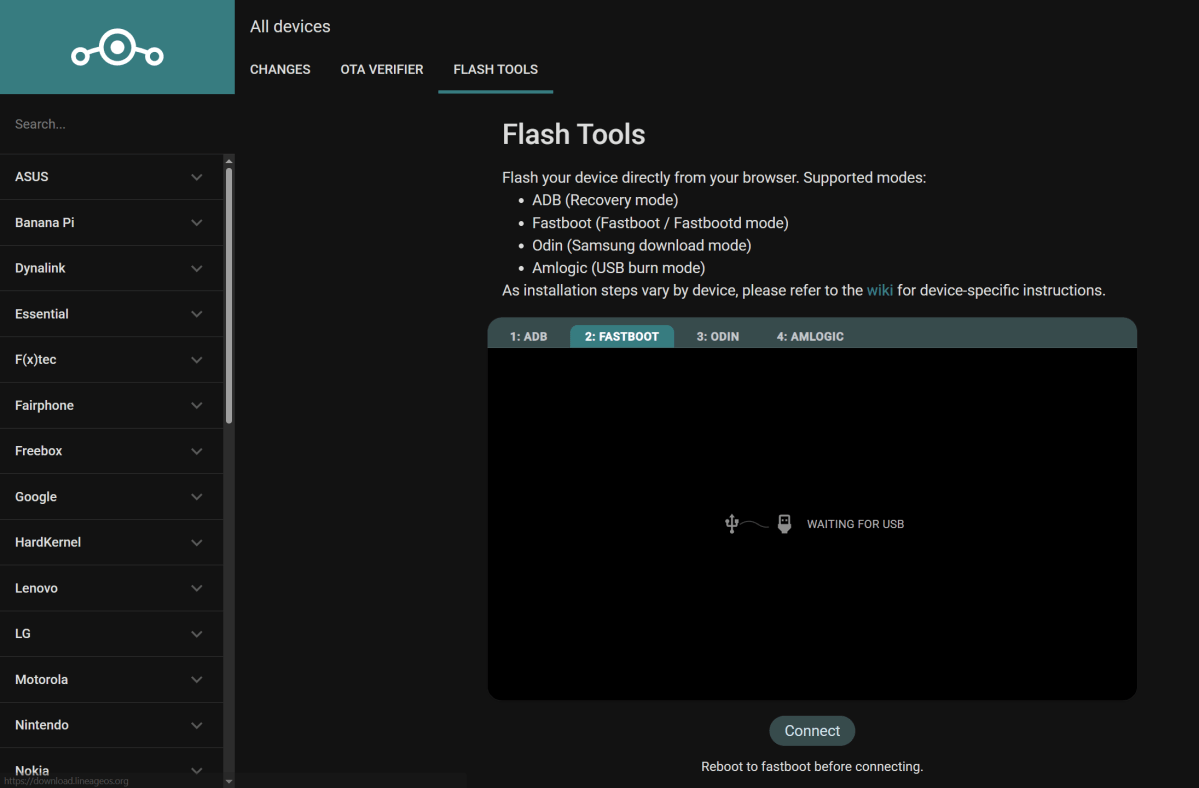
The Lineage Flash Tools then serve as a convenient alternative to the PC command line, which some users dread: You open the tool’s web interface in your browser, connect your smartphone via WebUSB (supported by Chrome or Edge) with a single click, and can upload the installation files directly to your phone via the browser window.
LineageOS
The new flash tool supports various methods such as Fastboot and ADB, as well as Samsung’s Odin protocol for certain devices. This significantly lowers the barrier to entry. However, as the team is rolling out the feature gradually and device-specific nuances remain, the web installer does not replace the entire process: the prior, manual unlocking of the bootloader often remains a requirement.
However, it is still not possible to do this without any preparation at all. LineageOS supports a vast number of different devices, and each model has its own specific characteristics. Therefore, the official guides for individual devices on the LineageOS Wiki remain essential reading.
There you will find out, amongst other things:
- which files are required for your smartphone
- how to unlock the bootloader
- which recovery environment to use
- whether any additional packages are required
If you follow the instructions step by step, you’ll usually get there without any problems. However, faulty files or incorrect steps can result in the device no longer booting up – a so-called ‘soft brick’.
Practical tips for browser installation:
- Terminate the local ADB: If you’ve already installed the standard Android Developer Tools on your PC, you’ll need to run the command `adb kill-server` in your command line before using the web tool to avoid conflicts.
- Resolving USB connection errors: The flashing process requires a high data throughput rate. If the web installer crashes or loses connection to the device, avoid using USB hubs, extension cables or adaptors. Connect the smartphone directly to the PC and, if in doubt, try a different USB cable or a different USB port.
- Help with problems: If you’re still having trouble, the community offers official support channels on Reddit, Discord or the IRC channel (#LineageOS on Libera.Chat).
Google services or maximum freedom?
After installation, LineageOS initially runs without Google services. Anyone wishing to continue using the Play Store, Gmail or Google Maps can install additional Google packages. A commonly used solution is MindTheGapps, which has been specially adapted for LineageOS.
Alternatively, users can opt for more privacy-friendly solutions such as MicroG, or do without Google entirely and download apps from alternative sources.
Which option makes sense depends on your own usage habits. For many users, the combination of LineageOS and Google services is the easiest route, whilst privacy enthusiasts may choose a different path.
GrapheneOS: The specialised solution for Pixel users (Android 17)
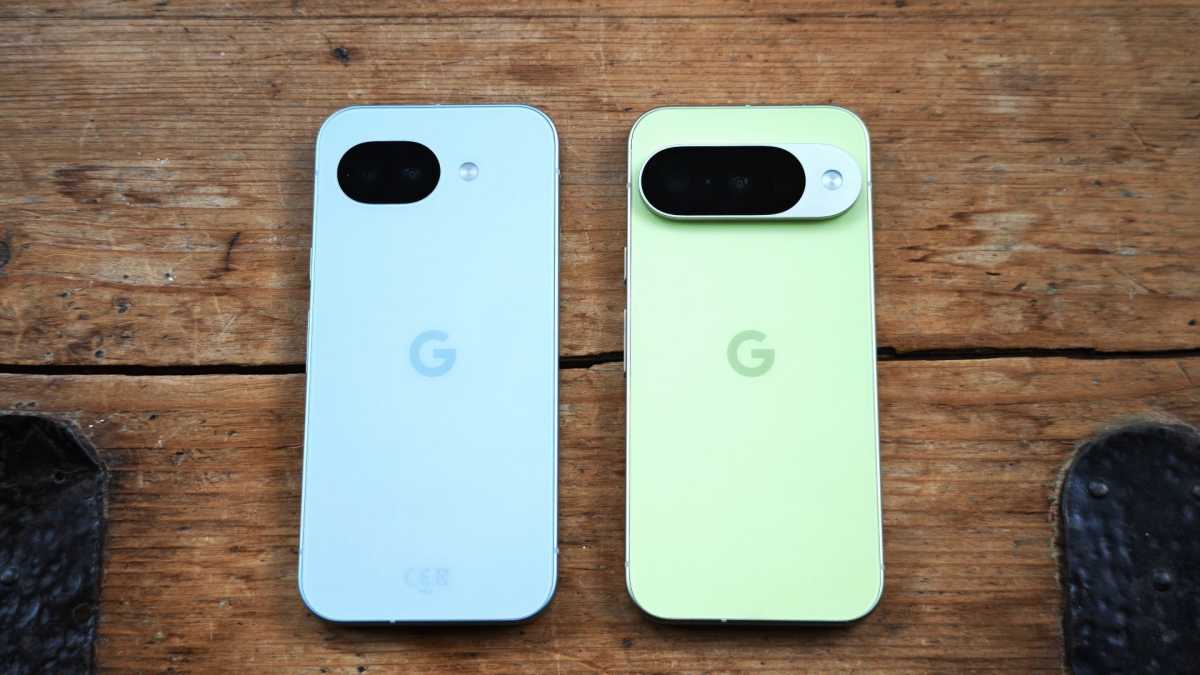
Alongside LineageOS, GrapheneOS is another well-known Android alternative. However, its approach is different: whilst LineageOS supports as many devices as possible, GrapheneOS focuses exclusively on Google Pixel smartphones.
Chris Martin / Foundy
This is due to the special security features of the Pixel hardware. Among other things, GrapheneOS utilises the secure boot process and hardware-based protection mechanisms that are not available in the same form on other devices.
The system is primarily aimed at users with particularly high data privacy requirements. Indeed, one Pixel user ended up in court after using GrapheneOS to wipe his phone data at the US border.
Google services are not permanently integrated here, but can still be used via an isolated environment (sandboxed Google Play).
GrapheneOS is also quick to adopt new Android versions and has already integrated Android 17 as its base. However, due to an initial Android 17 bug affecting manual sideloading via the recovery menu, users should definitely rely on the official web installer or automatic OTA updates when switching to or updating the system. For everyday smartphone use outside the Pixel ecosystem, however, LineageOS remains the far more widely supported solution, even though it is still based on Android 16.
Conclusion: A second lease of life for older smartphones
The end of manufacturer support does not automatically mean the end of a smartphone’s life. Anyone who owns a device that is still technically sound can often extend its life by several more years with LineageOS.
The combination of the latest Android version, security updates and fewer manufacturer-imposed restrictions makes custom ROMs more attractive today than ever before. At the same time, the new LineageOS web installer removes some of its former complexity.
It’s still not possible to do this without any technical interest whatsoever. However, if you take a bit of time and follow the official instructions carefully, you’ll end up with a modern Android system – and significantly extend the lifespan of your smartphone.