Understanding always charging your phone? This Android app could be the culprit
If you’re having battery problems with your Android phone, there could be an easy solution. The first thing to do is to check which apps are consuming the most power.
What very few people realise is that even default apps from Google itself can be hidden battery drainers, especially when they’re constantly running in the background.
One example is the Google app, which – particularly when used with the Google Chrome browser – constantly reloads data (for example, to update the Google Discover feed) and puts a constant strain on the battery.
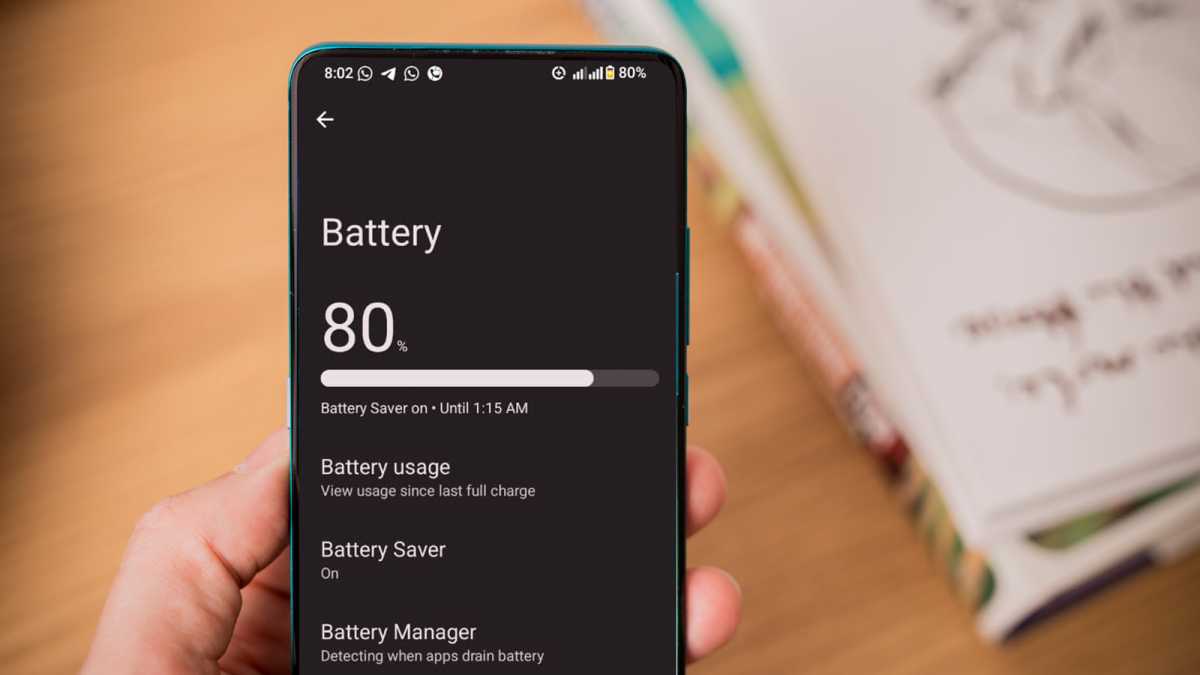
On most devices, you can easily check this by going to Settings > Battery and choosing Battery usage by app. Here, you’ll find a detailed breakdown of which apps are draining the battery, how long they’ve been doing so, and how many mAh they’ve used.
Foundry
Depending on the situation, the Google app may well be one of the top battery drainers, simply because it’s constantly running in the background. Google Maps, social media apps and YouTube are other common culprits.
How to reduce battery use
To stop the Google app from running constantly in the background and draining your battery, you need to restrict the app’s permissions. Within the Google app itself, under Settings > Additional settings, you can disable the Discover feed to prevent it from updating.
In the system settings, you can also search for the Google app under Apps > App Management (depending on the manufacturer, this path may be named differently) and, under Manage permissions, select the option ‘Stop app activity when not in use’.
If this option is greyed out, go back to Settings > Battery > Battery usage by app. There, find the Google app and enable Limit background usage. This will ensure that the app is only allowed to run in the background to a limited extent.
You can apply the same approach to any other app if you feel it’s using too much battery power. Pay special attention to any app which may be downloading content in the background, sending lots of notifications or constantly needing to access your location.

Foundry | Alex Walker-Todd
Common culprits include email apps, music apps or others that download data in the background, send lots of notifications or are otherwise active.
Want more battery life improvements? Use these seven tips to boost longevity by up to 25%.