Android storage full? Check these 3 space hogs You Should Know
Is your internal storage running low, even though you’ve hardly installed any new apps? If so, it’s worth taking a look at the files that accumulate unnoticed on your smartphone, alongside apps and photos.
In particular, photos and images automatically saved via messaging apps, forgotten downloads and content saved for offline use can, over time, take up several gigabytes of valuable storage space. We’ll highlight three typical storage hogs and explain how to track them down and safely remove them on Android 16.
1. WhatsApp media: Sent files saved as copies
WhatsApp can quickly take up several gigabytes on your smartphone – especially if you regularly send or receive photos and videos. A large proportion of this accumulates in the sent media folders. WhatsApp automatically creates copies of outgoing files there, which you can usually do without once they’ve been sent. There are two ways to find and delete this media.
A. Free up space via the file explorer. On Android, you can find these copies by performing a manual search at:
Android/media/com.whatsapp/WhatsApp/Media/
The‘WhatsApp Images/Sent’ and ‘WhatsApp Video/Sent’ folders are particularly relevant here, although the exact path may vary depending on your WhatsApp version and device configuration.
Only delete the files you no longer need. Bear in mind that the originals that have already been sent will remain untouched. If you need more help locating them, you can use an app such as the Cx File Explorer to navigate and delete files.
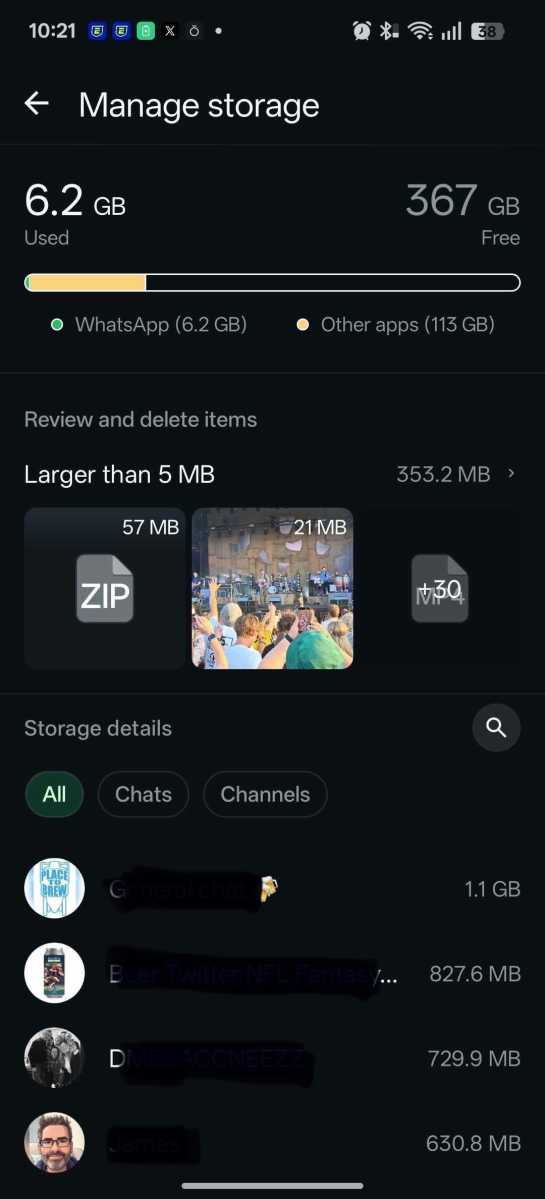
B. Freeing up space directly in WhatsApp. It’s even easier to find unnecessary media via the app itself. Open:
Settings → Storage and data → Manage storage
Chris Martin / Foundry
There, you can check which chats are taking up a lot of storage space and selectively choose and delete photos, videos, documents and other media they contain. Please note, however, that both received and sent files are displayed here.
Good to know: When you clear out WhatsApp in this way, you’re deleting the local media files from your smartphone. Files that have already been sent will not be deleted from the recipient’s chat.
2. Downloads: Get rid of forgotten files
Your Downloads folder is another classic storage hog: anything that was once downloaded from a browser, an email or another app sometimes stays there forever, even though the file hasn’t been needed for ages. Videos, ZIP archives and installation files in particular can take up a fair bit of storage space.
Open your smartphone’s file manager and navigate to the Downloads folder. With Files by Google, for example, you’ll find it under All Storage → Internal Storage → Download. Sort the files by size and start by looking through those taking up the most space at the top of your list. You can delete old and unwanted files directly from here.
It’s particularly worth checking older APK files, ZIP archives and downloaded videos. Documents and images also tend to accumulate here over time, causing the Downloads folder to keep growing.
3. Delete offline content within the relevant app
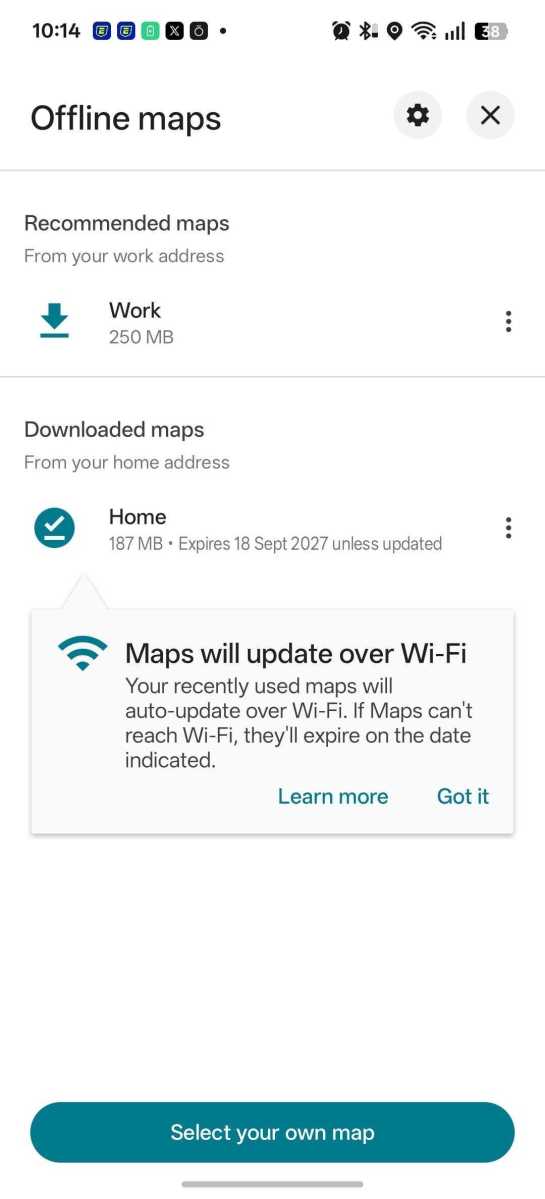
Streaming and navigation apps can also take up a lot of storage space. If, for example, you download films, music, podcasts or maps for offline use, you can quickly accumulate several gigabytes here.
You should delete such data directly within the relevant app wherever possible. In Google Maps, for example, you can check and remove downloaded offline maps under Profile picture > Offline maps. With streaming and podcast apps, too, you’ll usually find the saved content in the sections for downloads or offline content.
Chris Martin / Foundry
It’s also helpful to check Settings → Storage. There, Android shows you which data categories are taking up the most space. This allows you to target the biggest storage hogs, rather than deleting files at random.
But note this: Offline content isn’t automatically redundant. Only delete it if you no longer need the local content without an internet connection.
Three file managers for Android
If you want to manage files using more than just your smartphone’s default app, you’ll find numerous file managers in the Play Store. Here are three options that cater to different needs:
1. Files by Google: A straightforward start
Files by Google is already pre-installed on many Android smartphones. The app offers a clear file view, a search function and it displays files sorted by size. This allows you to quickly track down and delete large downloads or other storage-heavy files.
In addition, Files by Google can suggest duplicate files and unnecessary data for deletion. The app is ad-free and, at less than 20MB, is relatively lightweight.
2. Cx File Explorer: For a clearer overview
Cx File Explorer is aimed at users who want more control over their files. As well as providing access to internal and external storage, the app offers a graphical storage analysis feature that makes it easier to identify and manage large amounts of data. The app can also integrate cloud storage and network shares.
3. Total Commander: Multifunctional file explorer for advanced users
Total Commander is the Android version of the iconic file manager for Windows. The app uses a two-pane view and offers, among other things, search, batch processing, ZIP support, and access to FTP, SFTP, LAN and cloud storage. It’s ad-free and offers significantly more features than are needed for the occasional bit of tidying up. Anyone who wants to manage files on their smartphone in as much detail as on a PC will find plenty of advanced options here.
Cleaner apps – do I need them?
The honest answer is no. We advise against so-called ‘clean-up’ apps that claim to automatically delete system and cache files. Android manages app caches itself. You should also avoid manually cleaning out folders such as Android/data: access to these is restricted in current versions of Android.
Conclusion: Free up storage with just a few clicks
If you’re running low on Android storage, it’s worth starting by looking for large user data files. WhatsApp media, downloads and offline content are good places to start. Delete only what you no longer need – and leave protected app and system folders untouched.